Category: ergonomic-accessories

Ergonomic accessories for your home office: footrests, mats, cushions, cable management, stands, and more.

  • Ergonomic Mouse Pad with Wrist Rest: Gel vs Memory Foam vs Wood

    Ergonomic Mouse Pad with Wrist Rest: Gel vs Memory Foam vs Wood

    What the material difference actually means

    A mouse pad with a wrist rest is a small thing, but the material changes how it feels and what it is good for. The three common options — gel, memory foam, and wood — are not just aesthetic choices. They feel different under the wrist and suit different preferences.

    The right one depends less on marketing and more on how you want the wrist rest to feel and how you use the mouse.

    Gel wrist rest

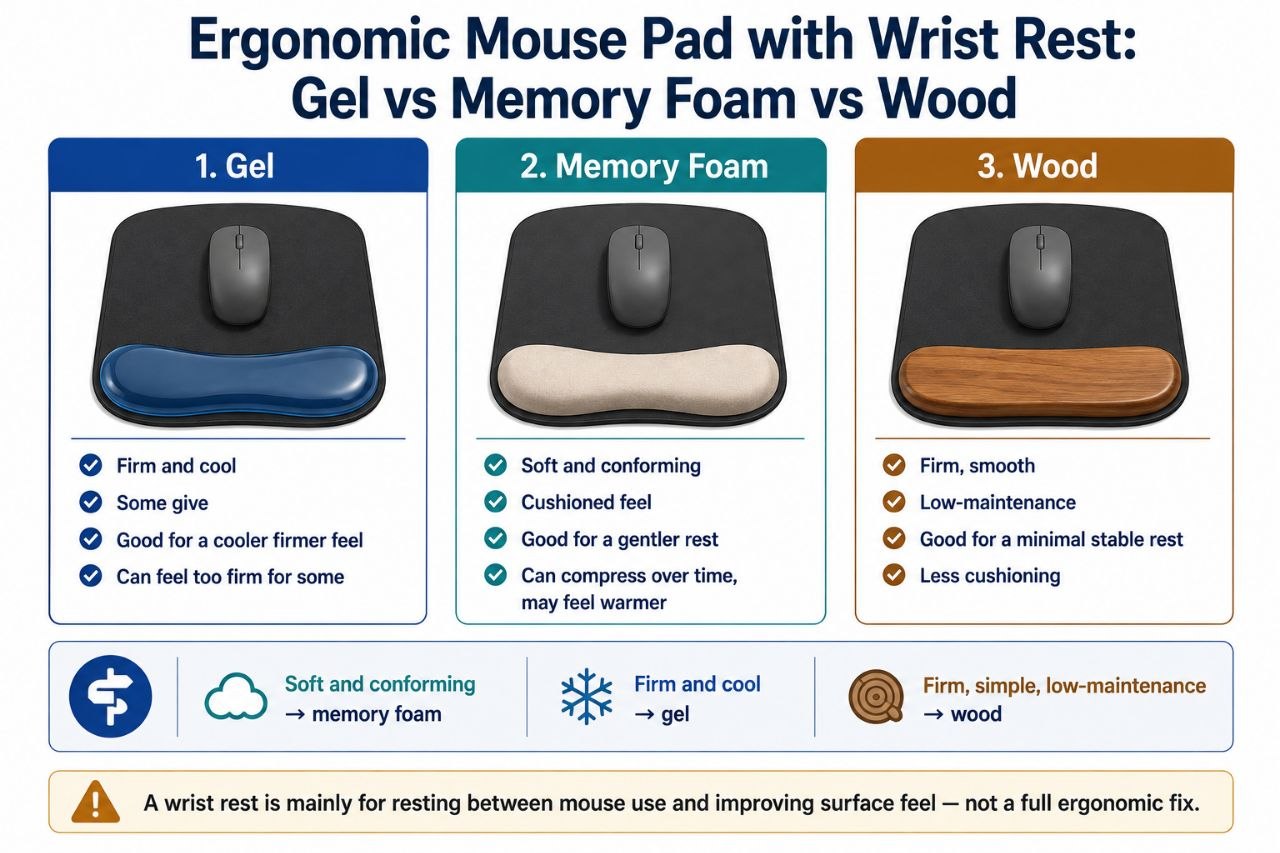
    The feel: Gel tends to be cool, slightly firm but with some give. It can feel supportive without being as soft as foam.

    Where it tends to fit:

    • People who like a firmer, cooler resting surface.
    • Someone who wants a wrist rest that does not compress as much as foam.
    • A setup where a cooler feel is preferable.

    Watch out for:

    • Gel can feel unusual or too firm for some people.
    • The surface feel matters — if it is too slick or too hard against your skin, it may not be comfortable for long sessions.
    • A gel rest is still a wrist rest; it does not fix a bad mouse position or arm posture.

    Memory foam wrist rest

    The feel: soft, conforming, and cushiony. Memory foam compresses a bit under pressure and adapts to the shape more than a firm surface.

    Where it tends to fit:

    • People who want a softer, more cushioned rest.
    • Someone who likes a surface that feels gentle under the wrist.
    • A setup where a plusher feel is the goal.

    Watch out for:

    • Foam can compress over time and change the feel.
    • Too soft or too thick can encourage an awkward wrist angle rather than a neutral rest.
    • Some people find foam runs warmer than other materials.

    Wood wrist rest

    The feel: firm, smooth, and stable. Wood is the least cushioning of the three but can feel clean and solid.

    Where it tends to fit:

    • People who prefer a firm, minimal rest.
    • Someone who likes a smooth, cool, simple surface.
    • A setup where a low-profile, low-maintenance rest is appealing.

    Watch out for:

    • Less cushioning means less softness — if you want a cushioned feel, wood will not give it.
    • The surface should be smooth enough to rest on comfortably.
    • Better for light resting than for long, heavy contact for some people.

    How to choose

    A simple way to think about it:

    • If you want soft and conforming: memory foam.
    • If you want firm and cool: gel.
    • If you want firm, simple, and low-maintenance: wood.

    The material you pick should match the feel you actually want, not just the first image you saw. A wrist rest that feels off to you will not help much just because it is “ergonomic” in name.

    A practical caution

    A mouse pad with a wrist rest is a small comfort and positioning aid, not a full ergonomic fix. It can improve the feel under your wrist during mouse use, but it does not replace good mouse position, good arm posture, or a setup that keeps your wrist in a reasonably neutral position.

    Also, a wrist rest is mainly for resting between active mouse use, not for forcing your wrist into a fixed position while you work. If it pushes your wrist into an awkward angle, it is not doing its job.

    When any of them makes sense

    • Your wrist rests on the desk or mouse pad during mouse use and you want a more comfortable surface.
    • You want a defined, slightly better-feeling rest area for your wrist.
    • You are choosing based on feel and material preference rather than expecting a big ergonomic change.

    When it is marginal

    • Your mouse position and arm posture are already fine and the surface feel is not a real issue.
    • You expect the wrist rest to solve a bigger problem than it can.
    • The material feel you pick is one you would not enjoy in daily use.

    Bottom line

    Gel, memory foam, and wood mouse pads with wrist rests each give a different feel: firm and cool, soft and conforming, or firm and minimal. Pick the material that matches the kind of rest you want and the feel you are comfortable with. The material matters because it changes the daily feel, but the rest is still a small aid, not a complete ergonomic solution.
  • Lap Desk for Couch and Bed Work: What Actually Works

    Lap Desk for Couch and Bed Work: What Actually Works

    The situation

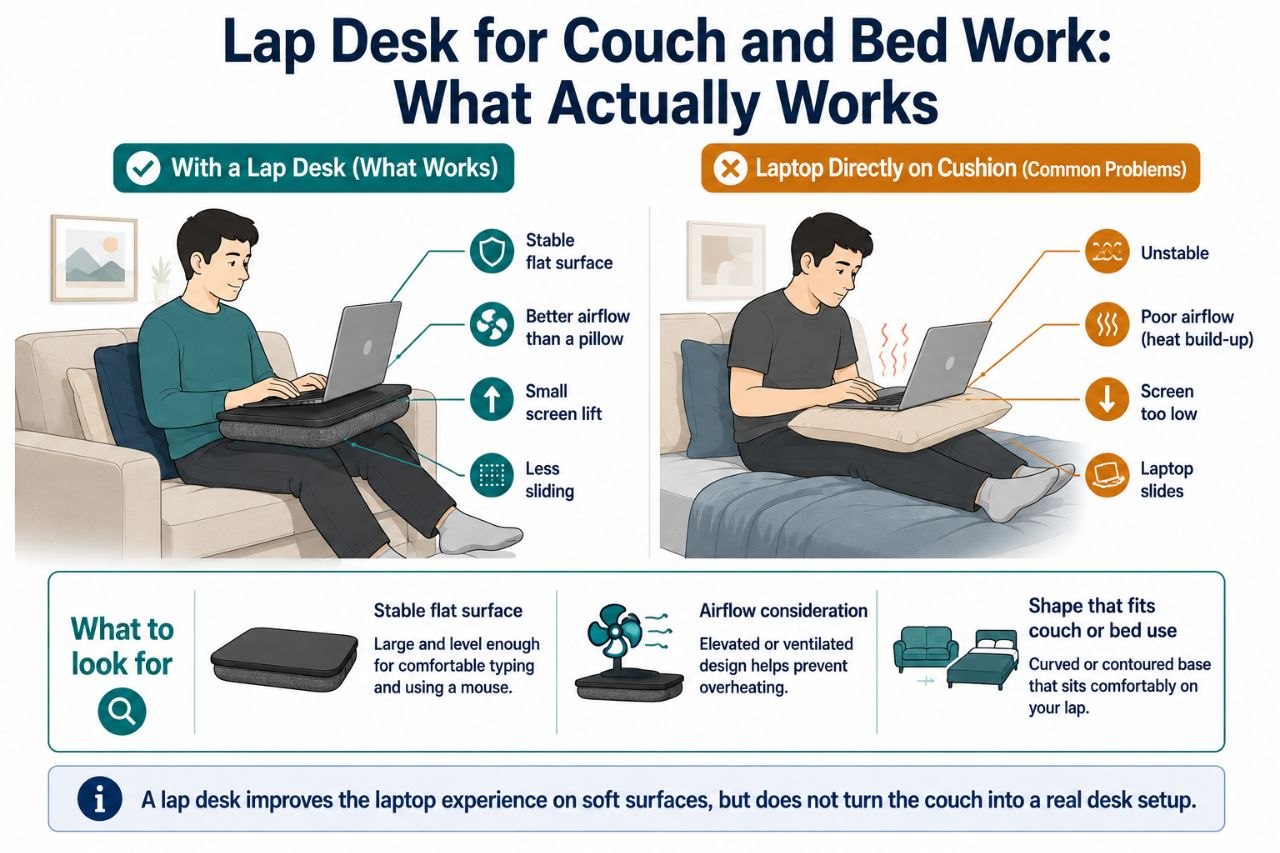
    Couch and bed work is common, and it comes with a set of predictable annoyances: the laptop slips, the surface is soft or uneven, airflow can be limited, and the screen ends up low, which pulls your neck and shoulders into a tiring position.

    A lap desk is one response to that situation. It is not a full fix, and it is not always the best one. The useful question is what it actually improves and where it falls short.

    What a lap desk can improve

    • A stable, flat working surface. That is the basic benefit. A laptop on a lap desk is usually more stable than a laptop balanced on a cushion, blanket, or lap alone.
    • Better airflow than a soft surface. Many lap desks have a design that lets air reach the laptop bottom better than a pillow or mattress does. That matters for heat and for the laptop itself.
    • A small lift for the screen. Even a modest lift can improve the viewing angle a bit compared with the laptop sitting low in your lap.
    • Less sliding. On a couch or bed, a laptop can shift around. A lap desk can reduce that.

    So for light couch-and-bed work — reading, writing, video calls, browsing, light tasks — a lap desk can genuinely improve the experience.

    Where a lap desk does not fix things

    • It does not make couch work ergonomic like a real desk. The posture is still not the same. A lap desk improves the laptop use, not the whole body setup.
    • It does not fully solve screen height. If the screen is still low relative to your eyes, your neck may still be the weak point.
    • It does not make long sessions comfortable by itself. A lap desk can make a laptop easier to use on the couch, but it does not turn the couch into a proper workstation.
    • It does not guarantee good airflow in every case. Some lap desks are better than others; a bad one can still trap heat.

    What to look for

    A lap desk that earns its place usually has:

    • A stable, flat surface that does not wobble much.
    • Some airflow consideration — a design that does not seal the laptop bottom against you.
    • A shape that fits where you actually use it. A couch lap desk and a bed lap desk are not always the same thing.
    • A size that fits your laptop without being awkwardly large or small.

    If you switch between couch and bed a lot, it is worth thinking about which situation matters more, because the ideal shape and feel can differ.

    Free or cheap alternatives worth considering

    • A firm cushion or board under the laptop can improve stability and airflow in a pinch.
    • A small lift for the laptop — even a simple object — can improve screen angle.
    • Position changes and breaks matter more on a soft surface than at a real desk.

    These are not as clean as a lap desk, but they cover part of the same problem for less money.

    When a lap desk is worth it

    • You do real work from the couch or bed, even if only sometimes.
    • You want a more stable and more comfortable laptop surface than what you have now.
    • You value the convenience enough to justify one more object.

    When you can skip it

    • Your couch/bed laptop use is very occasional.
    • You already have a workable setup for those moments.
    • You expect it to make couch work as good as a desk setup — it will not.

    Bottom line

    A lap desk is best thought of as a practical comfort and stability upgrade for couch and bed laptop use. It improves the laptop experience, but it does not turn a soft surface into a real desk. If your use is light-to-moderate and you want a better place to set the laptop, it can be a sensible buy. If your use is very occasional or you expect more than it can deliver, it is easy to skip.

  • Ergonomic Seat Cushion: Lumbar vs Coccyx vs Memory Foam

    Ergonomic Seat Cushion: Lumbar vs Coccyx vs Memory Foam

    The first question: what discomfort are we addressing?

    Seat cushions are not a single thing. The right one depends on where your discomfort actually comes from. A cushion that helps lower-back fatigue may do little for tailbone pressure. A tailbone cushion may not help much if your problem is overall seat firmness.

    The three common types are:

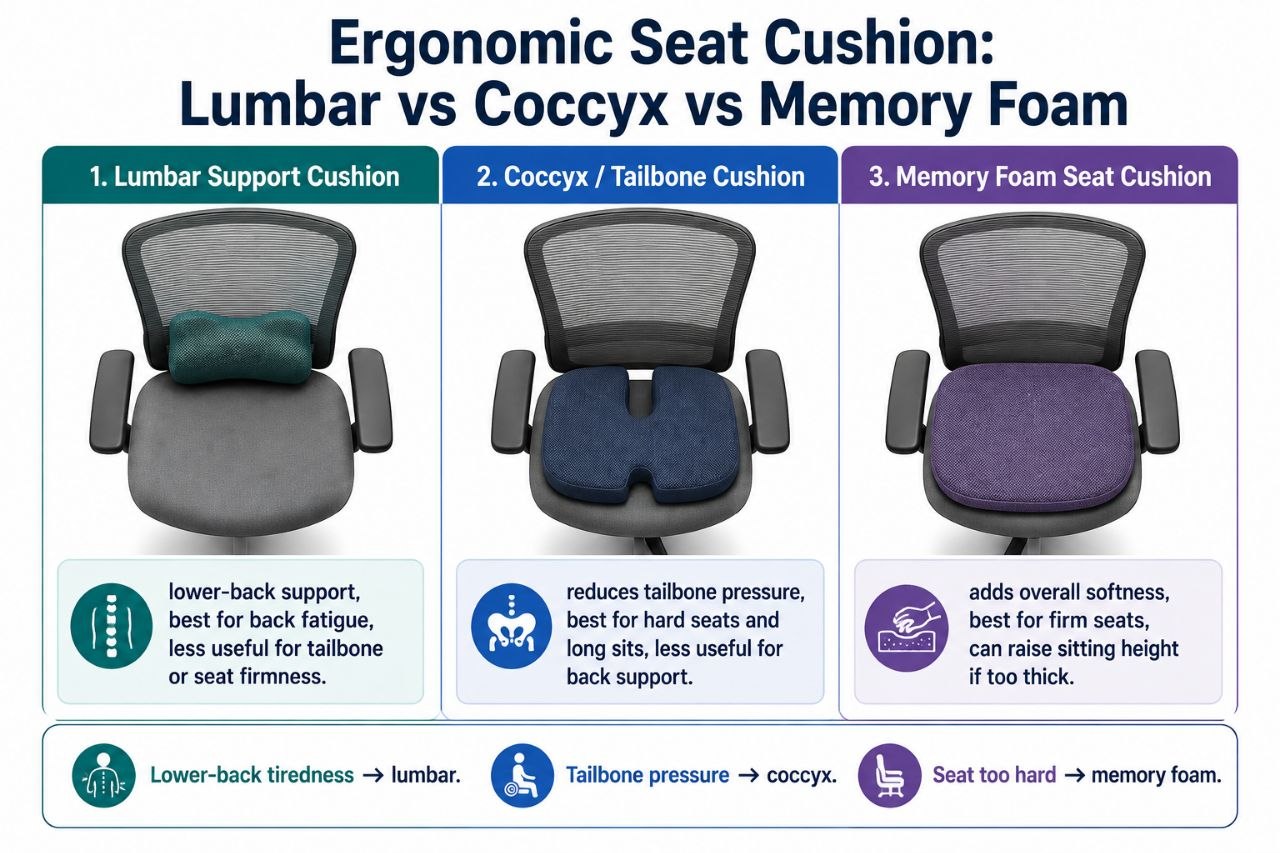
    • Lumbar support cushions — placed against the lower back, aimed at supporting the curve of the spine.
    • Coccyx / tailbone cushions — designed to take pressure off the tailbone, often with a cutout or wedge shape.
    • Memory foam seat cushions — a broader cushion that adds overall softness to the seat surface.

    The mistake is buying one and expecting it to fix everything.

    Lumbar support cushions

    What they are for: lower-back support. If your chair back feels too flat or you find yourself slumping to get comfort, a lumbar cushion can help fill the gap.

    Good fit for:

    • People who feel lower-back fatigue during long sitting.
    • Chairs with limited built-in lumbar support.
    • Someone who wants a reminder to keep a more supported posture.

    Less useful for:

    • Tailbone pain.
    • Seat firmness complaints.
    • Problems caused by chair height or desk position rather than back support.

    Coccyx / tailbone cushions

    What they are for: reducing pressure on the tailbone area. These are often the cushions people reach for when the hard edge of a seat is the main annoyance.

    Good fit for:

    • People who feel pressure or soreness in the tailbone area during long sits.
    • Hard-seat situations — firm office chairs, dining-style chairs, or seats without much padding.
    • People who sit for long continuous stretches.

    Less useful for:

    • Lower-back fatigue that is not tailbone-related.
    • Situations where the main problem is overall seat height or posture.
    • People who mostly stand or move around a lot.

    Memory foam seat cushions

    What they are for: overall softness. A memory foam cushion spreads pressure over a wider area of the seat, making a firm seat feel more forgiving.

    Good fit for:

    • People who find their seat too hard overall.
    • Chairs with minimal padding.
    • Someone who wants a general comfort upgrade rather than a targeted support solution.

    Less useful for:

    • Targeted tailbone pressure, where a coccyx cushion may be a better fit.
    • Lower-back support, where a lumbar cushion is more specific.
    • Situations where the cushion makes you sit too high relative to the desk — that can create a new problem.

    How to choose

    A simple way to think about it:

    • If your main complaint is lower-back tiredness: lumbar support cushion.
    • If your main complaint is tailbone pressure: coccyx cushion.
    • If your main complaint is the seat itself feels too hard: memory foam seat cushion.

    If you are not sure, think about where you feel the discomfort first during a long sitting session. That is a decent hint about which type is worth trying first.

    A practical caution

    A seat cushion changes your height relative to the desk. If it lifts you enough, your feet may no longer rest comfortably, or your keyboard may end up at a less ideal height. A good cushion should improve comfort without creating a new fit problem.

    Hemi Life connection

    Hemi Life carries an office ergonomic chair cushion that fits the broader category of seat comfort support. If you already use an ergonomic chair — for example, one you evaluated in an article like “Ergonomic Chair vs Regular Chair: What to Check Before You Buy” — the cushion is an add-on to that setup rather than a replacement for a good chair.

    Bottom line

    The right seat cushion depends on the specific discomfort you are solving. Lumbar cushions target lower-back support, coccyx cushions target tailbone pressure, and memory foam cushions add overall softness. Pick the type that matches your main problem, and check that it does not throw off your chair-and-desk fit.

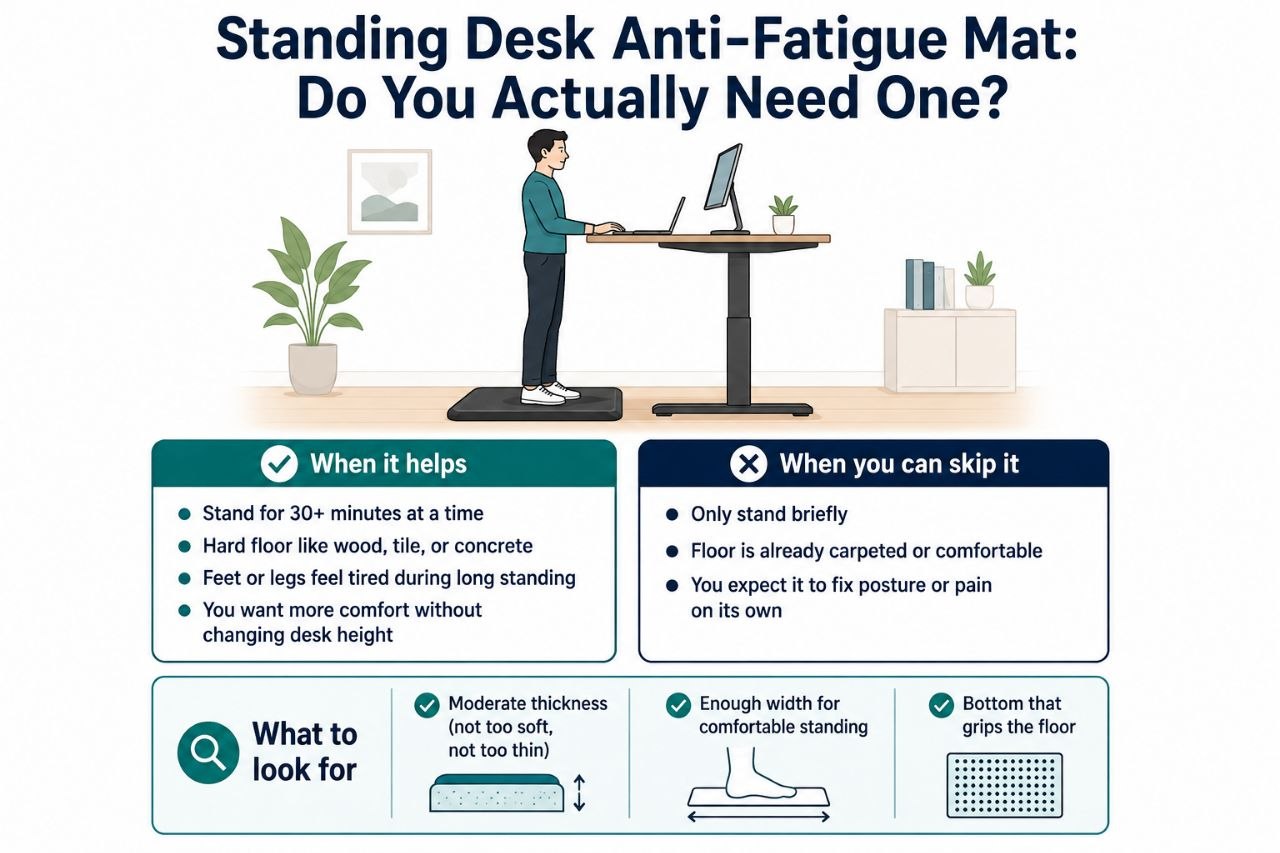
  • Standing Desk Anti-Fatigue Mat: Do You Actually Need One?

    Standing Desk Anti-Fatigue Mat: Do You Actually Need One?

    What an anti-fatigue mat is

    An anti-fatigue mat is a cushioned surface that you stand on during long periods at a standing desk. The basic idea is simple: a harder floor can feel tiring over time, and a mat gives your feet and legs a more forgiving surface.

    That sounds simple, but mats differ a lot in feel, and the differences matter more than the mere fact of having one. Thickness, density, and material all change how the mat feels after five minutes versus fifty minutes.

    Thickness: the obvious dimension, but not the only one

    Thickness is the easiest thing to notice, and it is worth thinking about.

    • Thinner mats tend to feel firmer and more stable. That can be good if you want some cushion without feeling like you are standing on a soft surface that wobbles a little.
    • Thicker mats give more initial cushioning, but too much thickness can feel less stable for some people, especially if they move around a lot or prefer a grounded feel.

    The practical point: thicker is not automatically better. A mat that is too soft or too thick can feel awkward, and a mat that is too thin may not give you much relief.

    Density: the less obvious but important part

    Density is less visible but often more important over time.

    • A firmer, denser mat may feel less plush at first but can hold up better during longer standing sessions because it does not compress as quickly.
    • A softer mat may feel great in the first few minutes and then lose some of its effect if it bottoms out under your weight.

    This is why two mats of similar thickness can feel very different. One may feel supportive for a full work session; another may feel good initially and then less so.

    Material feel

    Different materials give different underfoot feels:

    • Some feel softer and more “cushiony.”
    • Some feel more firm and supportive.
    • Some have a surface texture that matters for traction, especially if your feet sweat or you move around a lot.

    The “best” feel is personal. A mat that one person finds comfortably supportive another may find too firm or too soft. That is normal.

    When to get one

    A good reason to get an anti-fatigue mat is simple: you stand for long stretches and your feet, legs, or lower body start to tire in a way that a mat could plausibly soften.

    More specifically, it may be worth it if:

    • You stand for long work sessions and want a more forgiving surface than a hard floor.
    • Your feet or legs feel tired from standing on a hard surface.
    • You want a small comfort improvement that is easy to try without rebuilding your setup.

    It may be less worth it if:

    • You stand only briefly and move around a lot.
    • Your current floor surface already feels fine.
    • You expect the mat to solve a bigger posture problem that is actually about desk height, monitor position, or how long you stand at once.

    One practical caution

    An anti-fatigue mat is not a replacement for good standing habits. If you stand too long without changing position, shifting weight, or taking breaks, a mat helps but does not remove the basic issue. The mat is a comfort layer, not a substitute for varying your posture.

    Also, size matters more than people expect. A mat that is too small for your natural stance area may be less useful than a slightly larger one that lets you shift comfortably.

    What to check before buying

    • Thickness and firmness together, not just thickness alone.
    • Surface feel — if possible, stand on something similar before buying, because underfoot feel is personal.
    • Size relative to how you stand. Big enough to move a little without stepping off constantly.
    • Cleaning and maintenance. A mat you stand on all day will need occasional cleaning; some are easier to wipe than others.
    • Non-slip bottom. If the mat shifts on your floor, it becomes a nuisance instead of a comfort improvement.

    Bottom line

    An anti-fatigue mat is worth getting if you stand for long stretches and want a more forgiving surface for your feet and legs. The useful details are thickness, density, and underfoot feel — not just “get a mat.” A good mat is one that feels supportive over a real work session, not just comfortable for the first five minutes.

  • Laptop Cooling Pad: Heat, Posture, and When You Actually Need One

    Laptop Cooling Pad: Heat, Posture, and When You Actually Need One

    What a laptop cooling pad is

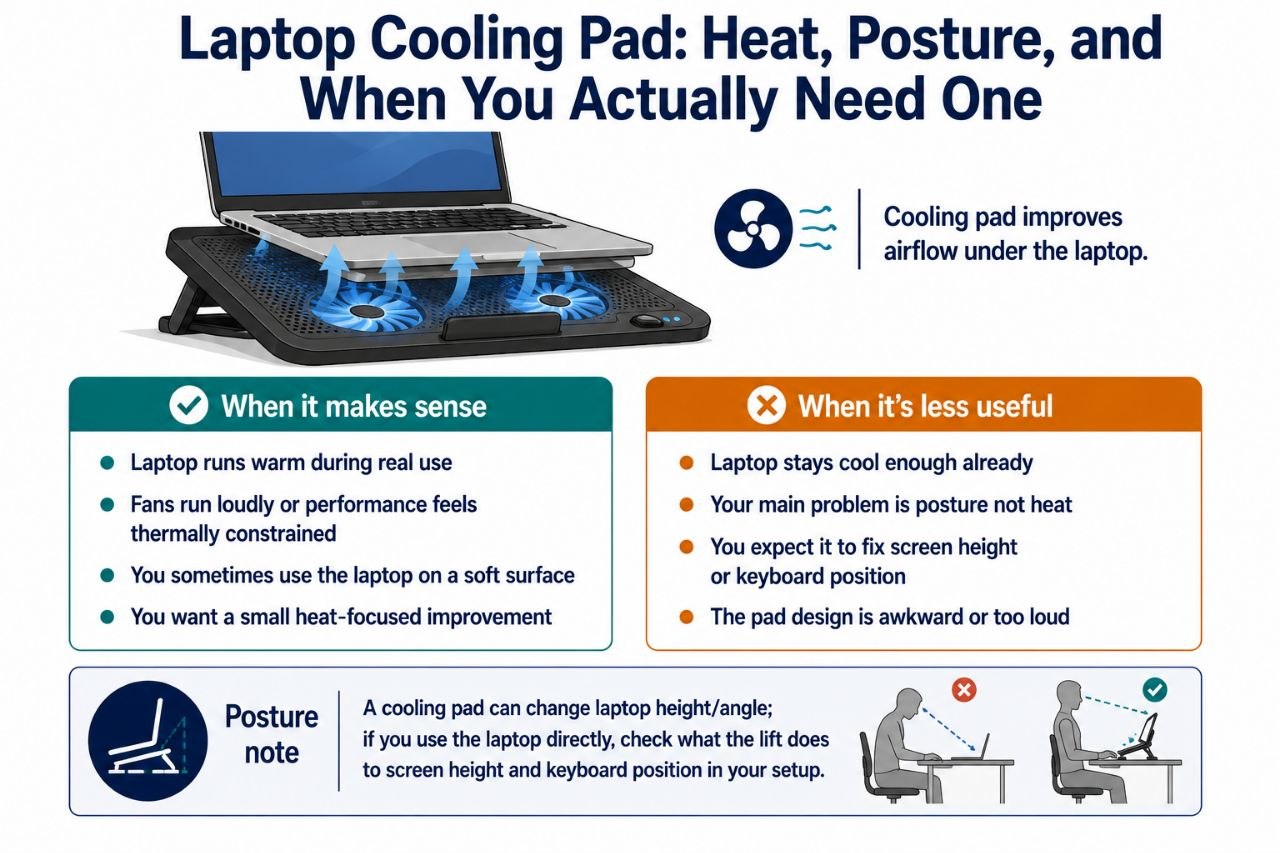
    A laptop cooling pad is a base with fans that lifts the laptop slightly and pushes air toward the bottom vents. The intended job is simple: help the laptop stay cooler by improving airflow under it.

    That part is straightforward. The less straightforward part is whether you need one, and what else changes when you add one to your setup.

    When a cooling pad is a reasonable buy

    A cooling pad makes the most sense when heat is actually a noticeable issue for you:

    • Your laptop runs warm during real use. If the laptop gets hot to the touch, the fans run loudly, or performance feels thermally constrained during long sessions, a cooling pad can help a bit.
    • You use the laptop on a soft surface sometimes. A couch, bed, or blanket can block airflow, and a cooling pad can improve that compared with direct contact with a soft surface.
    • You want a small, passive-ish improvement to laptop thermal comfort without rebuilding your setup.

    In those cases, a cooling pad is a sensible small accessory.

    When it is less useful

    • Your laptop stays cool enough already. If heat is not a real issue for your usage, a cooling pad may add little you would notice.
    • Your main problem is posture, not heat. A cooling pad is not a desk, chair, or monitor solution. It does not fix screen height, keyboard position, or chair fit.
    • You expect it to solve everything. It will not.

    The honest framing is that a cooling pad is a heat-focused accessory, not a general ergonomic upgrade.

    The posture angle people often miss

    Adding a cooling pad can change the laptop’s position. Depending on the pad design, it may lift the laptop, which can change:

    • Screen height. A lift can raise the screen slightly, which may help or hurt depending on the rest of the setup.
    • Keyboard angle. If the laptop keyboard is part of your typing setup, a change in angle or height can affect wrist and arm position.

    So if you are using a laptop directly — screen and keyboard both on the unit — it is worth thinking about what the pad does to the laptop’s position in your overall setup, not just to its temperature.

    For a docked laptop used with an external monitor and keyboard, the laptop’s own position matters less, and the cooling pad is more purely about heat.

    What to look for

    A useful cooling pad usually has:

    • Fans that are not annoyingly loud. If you use the laptop in calls or a quiet room, noise matters.
    • A size and lift that suit your laptop. Too much lift or a poor fit can be awkward.
    • A design that does not block your use. The pad should help without becoming an obstacle.

    Free or cheap alternatives worth considering

    • Using the laptop on a hard, flat surface instead of a soft one when heat is a concern.
    • Making sure vents are not blocked by clothing, bedding, or an uneven surface.
    • Managing workload — reducing heavy load when you do not need it can reduce heat without extra hardware.

    These are not as targeted as a cooling pad, but they can cover part of the same problem in some cases.

    A home office context

    In a home office setup, a cooling pad is one of those small accessories that can be useful if heat is actually a problem for you. If your laptop is part of a larger setup — say, a standing desk, a monitor, and an external keyboard — the cooling pad’s role is narrower and more about the laptop specifically than about the whole workspace.

    Bottom line

    A laptop cooling pad is worth considering if your laptop runs warm enough to bother you, or if you sometimes use it on surfaces that block airflow. It is a heat-focused accessory, not a general ergonomic fix, and it can change the laptop’s position in your setup. If heat is not a real issue for you, or if your main problem is posture and workspace fit, a cooling pad is probably not the first thing to buy.

    Shop the Hemi Life pick

    NEW D20 Laptop Cooling Pad for 11-17.3” Notebook Cooler Stand… — Check on Hemi Life.

  • Under-Desk Footrest vs Standing Desk Mat vs Anti-Fatigue Mat: What Each One Actually Does

    Under-Desk Footrest vs Standing Desk Mat vs Anti-Fatigue Mat: What Each One Actually Does

    The confusion this article clears up

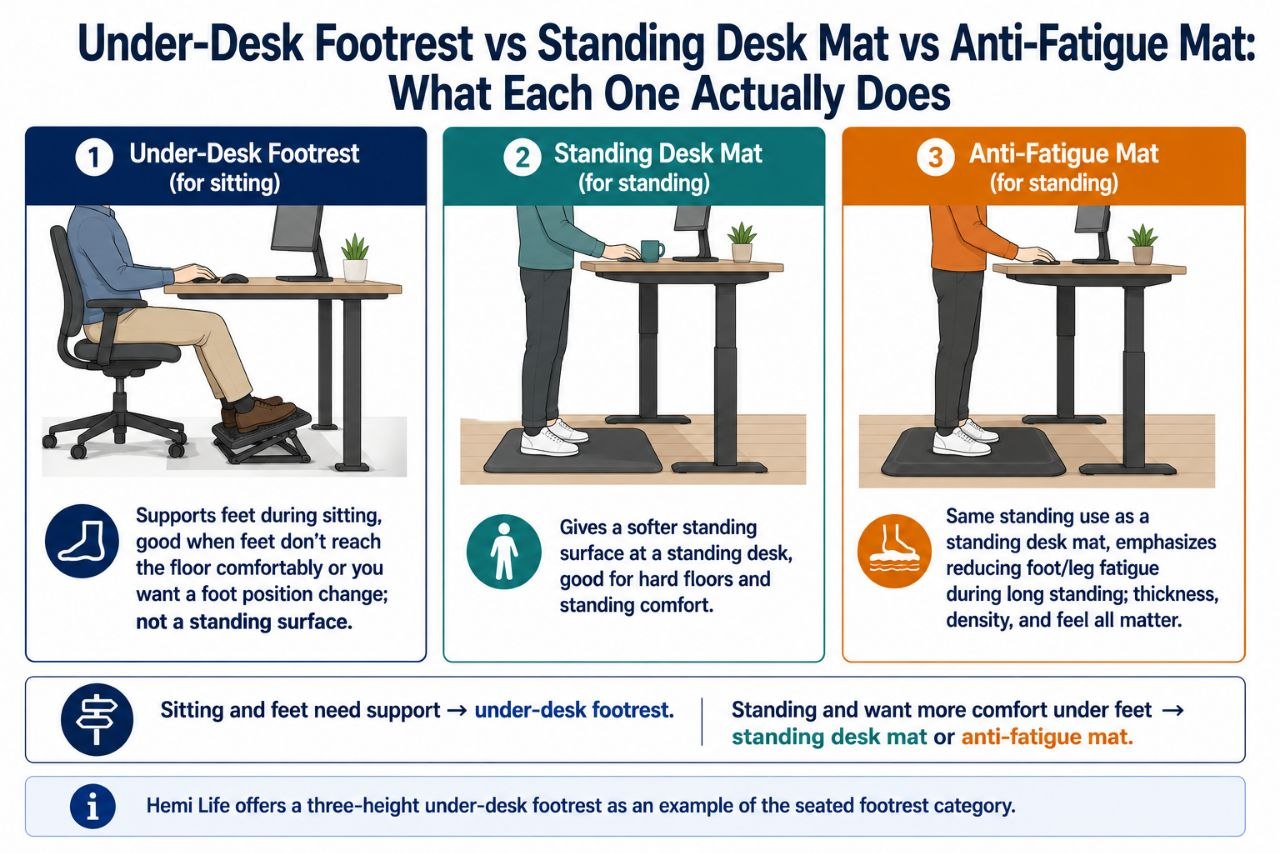
    These three products are easy to mix up because they all sit at the foot level and they all have something to do with comfort under you. But they solve different problems and are used in different situations.

    • An under-desk footrest is for sitting. It gives your feet a place to rest when they do not comfortably reach the floor, or when you want a foot position change during sitting.
    • A standing desk mat is for standing. It gives you a more comfortable surface under your feet at a standing desk.
    • An anti-fatigue mat is also for standing, and the term is often used interchangeably with standing desk mat. The emphasis is on reducing foot and leg fatigue during long standing.

    The right product depends on whether you are sitting or standing — and what you are trying to improve.

    Under-desk footrest

    What it is for: seated comfort and foot support. If your chair height is such that your feet do not rest well on the floor, or if you want a place to alternate foot position during long sitting, a footrest helps.

    Good fit for:

    • People whose feet dangle or do not reach the floor comfortably.
    • Someone who wants to reduce pressure on the thighs or improve seated posture by supporting the feet.
    • A sitting setup where foot position matters.

    What it does not do: it is not a standing surface. It does not replace a mat for standing, and it is not mainly about foot fatigue from standing.

    Hemi Life example: Hemi Life’s 0-30 three-height under-desk footrest is a concrete example of this category — a footrest designed to support the feet during sitting, with height options to fit different needs.

    Standing desk mat

    What it is for: standing comfort at a standing desk. It gives you a softer, more forgiving surface under your feet while you stand.

    Good fit for:

    • Someone who uses a standing desk and wants more comfort under their feet.
    • A hard floor situation where standing for a while starts to feel tiring.
    • A person who wants a mat that stays in place under the desk.

    What it does not do: it is not for sitting, and it is not mainly a footrest for foot-elevating purposes. It is about standing surface comfort.

    Anti-fatigue mat

    What it is for: same basic situation as a standing desk mat — standing comfort — but the name emphasizes fatigue reduction. In practice, many people use the terms for a similar type of product.

    Good fit for:

    • Long standing sessions on a hard surface.
    • Someone whose feet or legs feel tired from standing.
    • A standing setup where you want a more forgiving surface.

    What to watch for: thickness, density, and surface feel all matter. A mat that is too soft can feel unstable; one that is too thin may not help much. The “right” mat is the one that feels supportive and comfortable for your actual standing use.

    The simple split

    If you are sitting and your feet need support or a position change, the product to look at is an under-desk footrest.

    If you are standing and want more comfort under your feet, the product to look at is a standing desk mat / anti-fatigue mat.

    These are not interchangeable. A footrest does not help much as a standing surface, and a standing mat does not help as a seated foot support.

    When to consider more than one

    It is possible to want both if your setup includes meaningful sitting and standing. A footrest supports the sitting portions; a mat supports the standing portions. They solve different parts of the same overall comfort question.

    Bottom line

    Do not mix up these three. An under-desk footrest is for seated foot support; a standing desk mat and an anti-fatigue mat are for standing surface comfort. Pick the one that matches whether you are sitting or standing, and if you do both a lot, you may want one of each for the different parts of your setup.

    Shop the Hemi Life pick

    Under-Desk Ergonomic Footrest (Steel, 2-Tier Adjustable) — Check on Hemi Life.

  • Document Holder for Dual Monitor Setups: When It Helps and When It Doesn’t

    Document Holder for Dual Monitor Setups: When It Helps and When It Doesn’t

    The add-on question

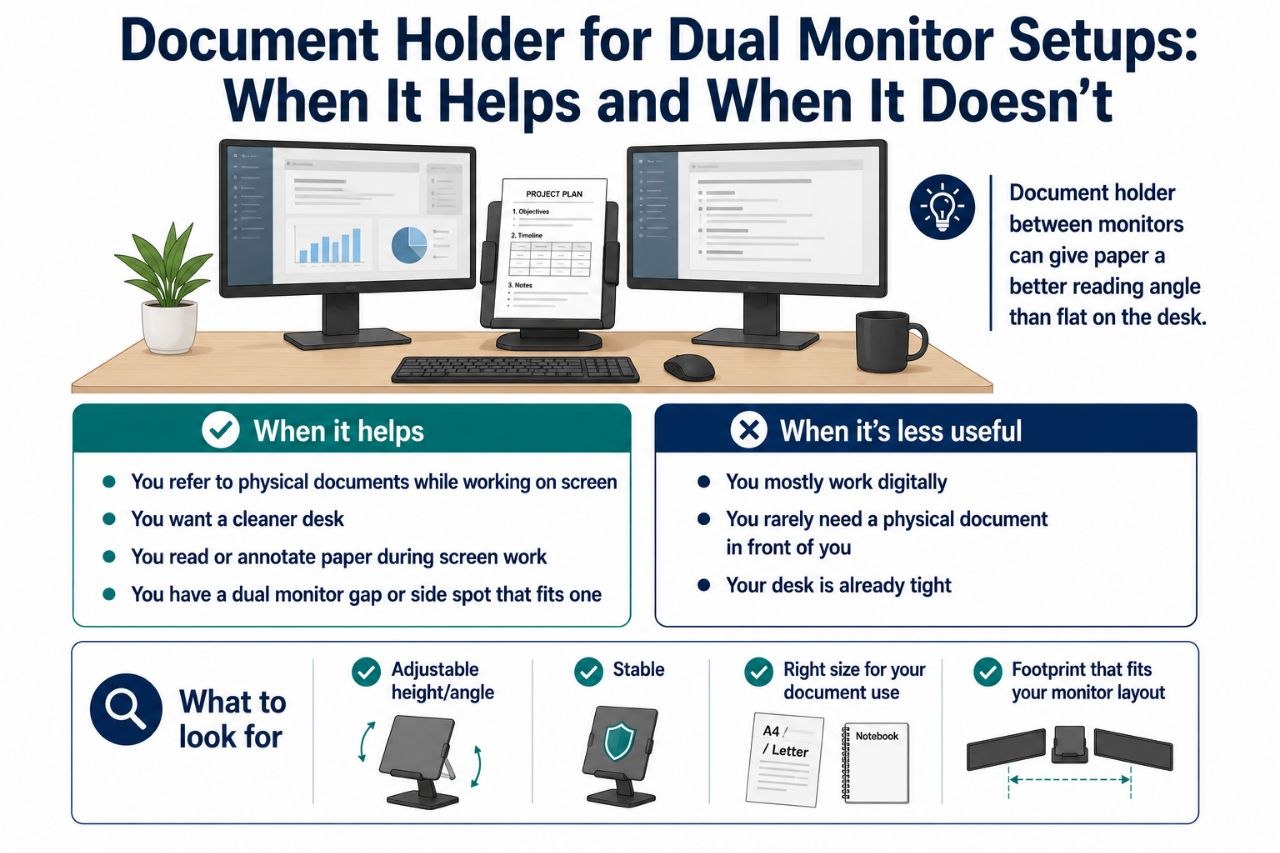
    A document holder is one of those accessories that sounds almost obvious for a dual monitor setup: you have two screens, and you also have paper, notes, or a physical document you need to refer to. The holder keeps that material at a usable height instead of flat on the desk, where it can be harder to read and can clutter the workspace.

    The question is not whether document holders exist. The question is whether one actually helps your specific workflow enough to be worth the space and money.

    When a document holder helps

    • You refer to physical documents while working on screen. If you regularly look between a paper document and one of your monitors, a holder that puts the document at a better angle can reduce that awkward flat-on-the-desk reading.
    • You want a cleaner, more organized desk. A holder gives the document a defined place and can keep it off the main work area.
    • You read or annotate paper during screen work. A holder can make that easier on the neck and eyes than a document lying flat.

    In a dual monitor setup specifically, a document holder can sit in the gap between the monitors or to the side, depending on your layout, and give you a paper reference position that is more natural than laying it down.

    When it is less useful

    • You mostly work digitally. If your “documents” are usually files on screen, a paper holder may be mostly extra furniture.
    • You rarely need a physical document in front of you. If the paper only shows up occasionally, a holder may be more object than benefit.
    • Your desk is already tight. A document holder is another item competing for space, and in a small setup that can matter.

    What to look for

    A useful document holder usually has:

    • Adjustable height and/or angle. The point is to get the document closer to screen height and at a readable angle. A fixed holder may still help, but adjustability makes it more adaptable.
    • Stability. It should hold the document without wobbling or tipping when you handle it.
    • A size that fits your document use. A holder for a single page is different from one for a tablet, notebook, or larger document.
    • A footprint that fits your desk layout. In a dual monitor setup, the holder needs to fit in the gap or to the side without getting in the way.

    Placement in a dual monitor setup

    Two common placements:

    • Between the monitors. This can work well if you have a gap and use the document while looking between screens. It keeps the paper roughly centered and at a usable height.
    • To the side. This works if your document use is more occasional or if the between-monitor space is too tight.

    The right placement depends on how often you use the document and how your monitors are arranged.

    A practical caution

    A document holder is a small thing, but small things can be annoying if they are in the wrong place. If it crowds your mouse area, blocks a monitor, or sits where you constantly bump it, it is not helping much.

    When it is worth it

    • You work with physical documents or paper notes while using your screens.
    • You want a more comfortable reading angle for those documents.
    • You have a dual monitor layout that leaves a sensible spot for one.

    When you can skip it

    • Your workflow is mostly digital.
    • You rarely need a physical document in front of you.
    • Your desk space is too tight to fit one cleanly.

    Bottom line

    A document holder can be a genuinely helpful add-on in a dual monitor setup if you actually use physical documents or paper notes during screen work. It gives those materials a better angle and a defined place. If your work is mostly digital or your desk is too tight, it is easy to skip. The value is in matching the holder to a workflow that needs it.

    Shop the Hemi Life pick

    Simple Metal Document Holder, Mesh File Rack with 3 Layers, Mail… — Check on Hemi Life.

  • Monitor Privacy Filter: Privacy vs Visibility — What the Trade-Off Really Is

    Monitor Privacy Filter: Privacy vs Visibility — What the Trade-Off Really Is

    What a monitor privacy filter is supposed to do

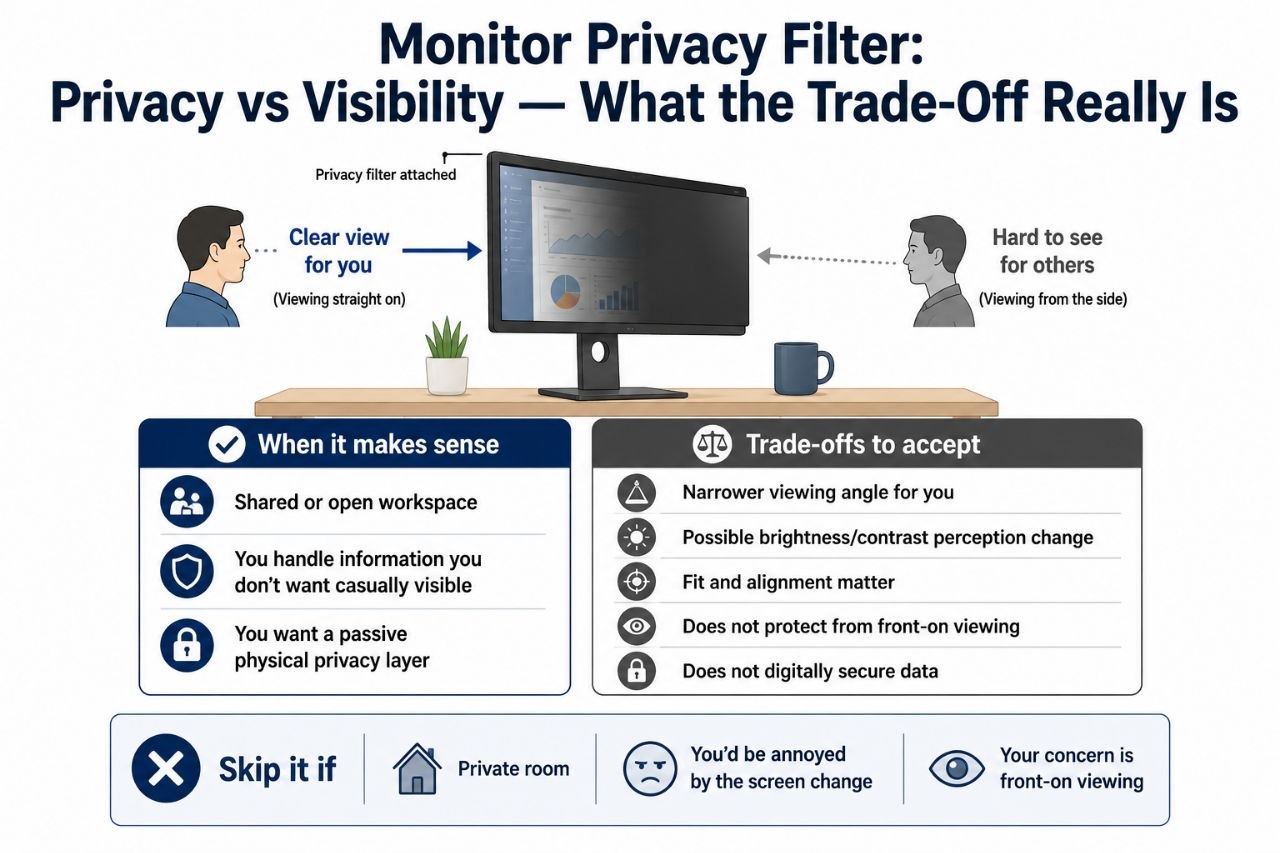
    A monitor privacy filter is a panel that attaches to your screen and narrows the viewing angle. From directly in front, the screen looks normal enough. From the side, the content becomes much harder to see.

    The intended use is simple: stop people sitting or standing to the side from casually reading your screen.

    When it makes sense

    A privacy filter is a reasonable buy if:

    • You work in a shared or open space where people pass by or sit nearby.
    • You handle information you would rather not have casually visible.
    • You want a physical, passive layer of privacy rather than relying only on screen positioning or behavior.

    In those situations, the privacy benefit is real and direct.

    What people often underestimate: the visibility cost to you

    A privacy filter does not just affect other people. It also changes the screen for the person using it.

    Common trade-offs include:

    • Narrower effective viewing angle for you. If you sit slightly off-center, lean back, or tilt the screen, the screen can look dimmer or less clear than without the filter.
    • Some reduction in brightness or contrast perception. The amount varies by filter, but the effect is real enough that some users notice it.
    • Potential fit and alignment irritation. If the filter is not sized or installed well, it can be annoying in daily use.

    So a privacy filter is not “privacy with no downside.” It is “privacy with a visibility trade-off that you need to be okay with.”

    What a privacy filter does not do

    • It does not secure your data digitally. It is a physical, visual layer, not a security system.
    • It does not make the screen private from someone directly in front of it. It is about side viewing, not front viewing.
    • It does not replace thoughtful workspace setup. If someone can sit directly in front of your monitor, a privacy filter does less for you.

    When you can skip it

    • Your space is private enough already. If you work alone in a private room, the privacy benefit may be negligible.
    • You would be annoyed by the change in your own screen experience. If you are sensitive to any reduction in brightness, contrast, or viewing angle, a filter may not be worth it.
    • Your privacy concern is mainly about front-on viewing. A filter helps less with that.

    Practical things to check before buying

    • Size match. Privacy filters are sized to specific screen dimensions, so a good fit matters.
    • Installation method. Some attach with magnets, some with adhesive, some with clips. Pick one that suits your monitor and whether you want a reversible install.
    • How you actually sit. If you sit straight on, the visibility trade-off may be minor. If you sit off-angle a lot, test the idea carefully.

    A home office context

    In a home office, the privacy question is different from an open office. The main audience is usually household members, visitors, or camera coverage rather than coworkers passing by. That does not mean a privacy filter is never useful at home — it can still matter — but the reason to buy it is more specific.

    Bottom line

    A monitor privacy filter is a genuine tool for limiting side viewing of your screen, and it can make sense in shared or semi-shared spaces. The trade-off is that it also changes the screen experience for you, so the right question is not “does it give privacy?” but “is the privacy worth the visibility cost to my own use?”

    Shop the Hemi Life pick

    14-Inch Monitor Privacy Screen Filter, Anti-Peeping Display… — Check on Hemi Life.

  • Cable Management: Box vs Sleeve vs Under-Desk Tray

    Cable Management: Box vs Sleeve vs Under-Desk Tray

    The first split: what part of the mess are you solving?

    Cable management is not one product. It is a set of approaches that solve different parts of the same general problem. The useful question is which part of your cable mess you are actually trying to fix.

    The three common options are:

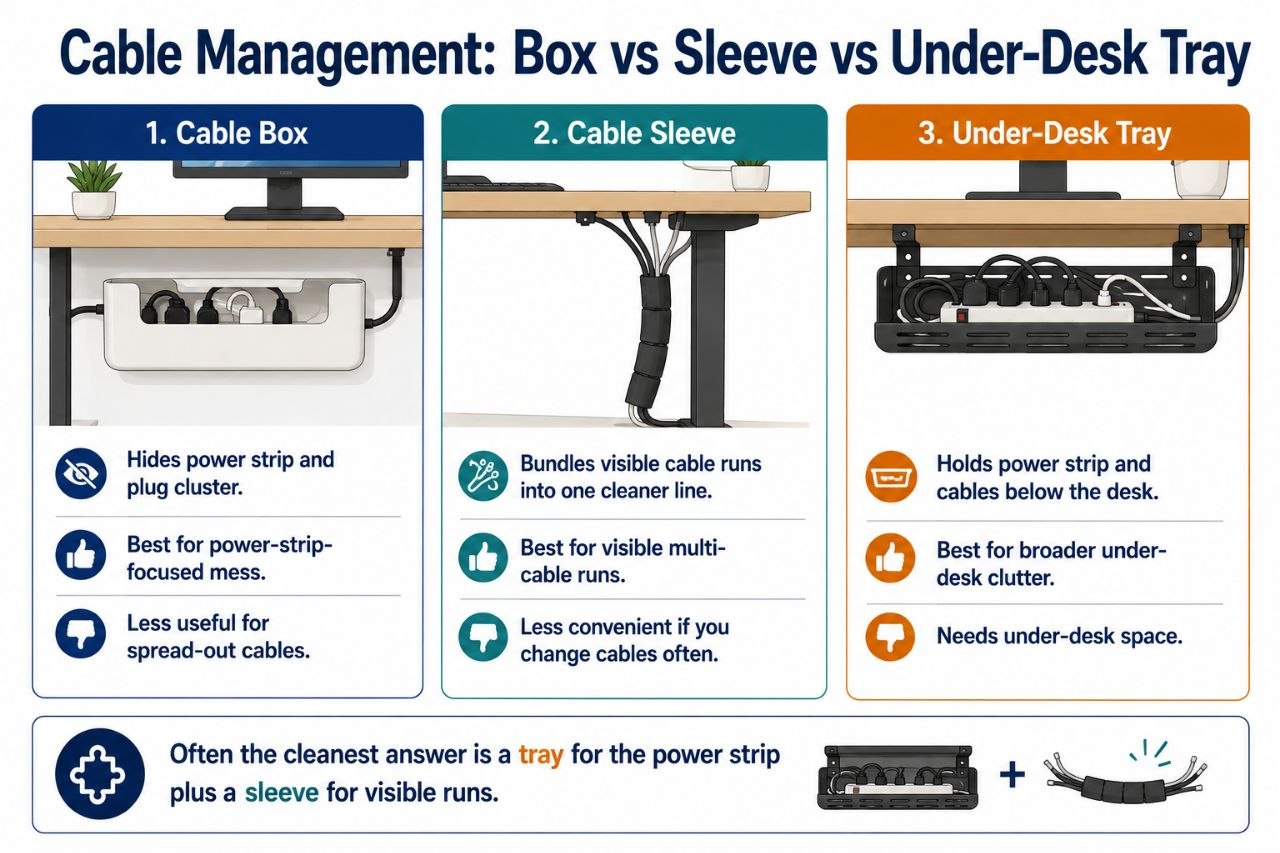
    • Cable boxes — a box that hides a power strip and the tangle of plugs and cables around it.
    • Cable sleeves — a wrap that bundles several cables together into one cleaner-looking line.
    • Under-desk trays — a tray mounted below the desk surface to hold cables, a power strip, or both.

    Each one has a different job, and the right choice depends on what kind of mess you have.

    Cable box

    What it is good for: hiding a power strip and the loose plug tangle around it. If your main eyesore is the power strip and its cluster of cables on the floor or under the desk, a box can contain that in one cleaner object.

    Good fit when:

    • You have a power strip visibly cluttering the area.
    • You want the power strip out of sight but still accessible.
    • The main problem is the power strip, not a long visible cable run.

    Less ideal when:

    • You have many cables spread around that are not all at the power strip.
    • You want to bundle or route cables, not just hide one cluster.
    • The box is too small for your power strip and plug count.

    Cable sleeve

    What it is good for: bundling several cables that run together into one cleaner-looking line. If you have a visible bundle of cables going from the desk to a wall outlet or along a leg, a sleeve can make that look less messy.

    Good fit when:

    • You have a visible cable run that looks messy because several cables are loose together.
    • You want a cleaner line rather than hiding everything.
    • The cables are relatively static and do not need frequent changes.

    Less ideal when:

    • You need to access cables frequently — sleeves make that less convenient.
    • The main issue is a power strip or under-desk tangle rather than a visible run.
    • You have only one or two cables, where a sleeve is more than you need.

    Under-desk tray

    What it is good for: holding cables, a power strip, or both below the desk surface. This is the more comprehensive option — it gets more of the cable clutter off the floor or out from under the desk and into a dedicated space.

    Good fit when:

    • You have a power strip and several cables under the desk.
    • You want the cable clutter hidden below the desk rather than visible or on the floor.
    • You have enough under-desk space for a tray.

    Less ideal when:

    • Your desk does not have much under-desk space.
    • You only have one or two cables and a tray is overkill.
    • Installation is a problem for your desk or your setup.

    How to choose

    A practical way to think about it:

    • Main problem is the power strip and its cables visible on the floor or under the desk → cable box.
    • Main problem is a visible bundle of cables running along a leg or edge → cable sleeve.
    • Main problem is broader under-desk cable clutter and a power strip → under-desk tray.

    You can also combine them. A tray can hold the power strip, and a sleeve can bundle the visible run. That is often the cleanest real-world answer.

    A Hemi Life connection

    Hemi Life offers a silicone desk cable holder, which is a simpler, smaller-scale cable management tool. It is useful for keeping individual cables or small bundles in place on the desk surface. If your problem is more about under-desk clutter than surface cable control, a box, sleeve, or tray may be the better match; if you mainly want to keep a cable or two tidy on the desk, the silicone holder is a more targeted option.

    Bottom line

    Cable management works best when you match the tool to the mess. A box hides a power strip cluster, a sleeve cleans up a visible cable run, and a tray handles broader under-desk clutter. If you have more than one kind of cable problem, a combination is often the most effective answer.

    Shop the Hemi Life pick

    Desk Cable Management Kit — Check on Hemi Life.

  • Headphone Stand: Is It Actually Worth the Desk Space?

    Headphone Stand: Is It Actually Worth the Desk Space?

    The claim people make

    Headphone stands are often sold as a simple organization upgrade: put the headphones somewhere neat, free up the desk surface, keep them from sliding around. That sounds reasonable. The question is whether it is worth the space, money, and addition of yet another object for your specific use.

    The honest answer is: it depends on how you use your headphones and how much your desk space and layout matter to you.

    When a stand makes sense

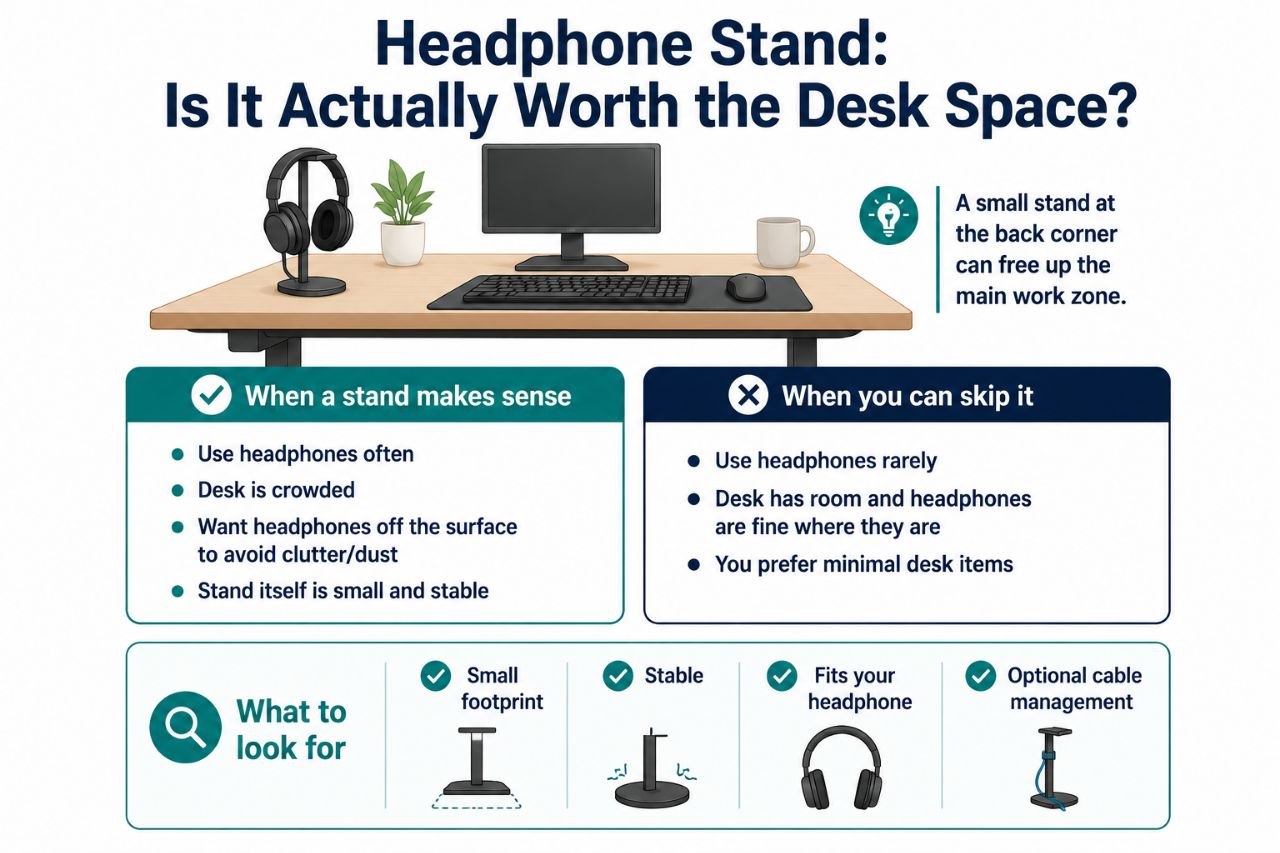
    • You use headphones often and want them accessible. If you put them on and take them off multiple times a day, a stand can be more convenient than leaving them on the desk or stuffing them in a drawer.
    • Your desk is crowded. If the headphone is taking up space you need for keyboard, mouse, notebook, or a drink, a stand can reclaim a bit of that space by lifting it off the surface.
    • You want them off the desk to avoid damage or dust. A stand keeps them out of the way and can reduce the chance of knocking them over.

    When you can skip it

    • You use headphones rarely. If you only use them occasionally, a stand may be more object than benefit.
    • Your desk has room and the headphones are fine where they are. If the headphones already have a good place and do not cause clutter, a stand is optional.
    • You want minimal desk items. A stand is one more thing on the desk. If minimalism matters to you, that counts against it.

    What to look for in a stand that earns its place

    • Small footprint. A good stand should not take up more space than the headphone itself. A bulky stand defeats the space-saving idea.
    • Stable enough. It should hold the headphone securely without tipping easily.
    • Fits your headphone. Not every stand suits every headband or earcup size.
    • Maybe cable management. If your headphone cable is part of the clutter, a stand that helps manage it is more useful than one that does not.

    The space question in plain terms

    A headphone stand “saves space” only if it actually reduces clutter and frees up useful surface area. If it just moves the headphone from one spot on the desk to another spot on the desk and adds a new base, it is not really saving much.

    The ideal case is: the headphones are off the main work area, easy to reach, and the stand itself is small and stable. That is a genuine improvement. The less ideal case is: another object taking up space for a convenience that you barely notice.

    A home office context

    In a home office setup — where desk space is often shared with keyboard, mouse, notebook, reference materials, and maybe a drink — a small, well-placed headphone stand can be a sensible accessory. In a setup where space is already tight, it is worth weighing whether the stand helps enough to justify the spot it takes.

    Bottom line

    A headphone stand is worth it if you use headphones regularly, your desk benefits from the freed space, and the stand itself is small and stable. If your headphones already have a fine place, you rarely use them, or you prefer a minimal desk, you can skip it. The value is in practical convenience and space use, not in having a stand for its own sake.

    Shop the Hemi Life pick

    2-in-1 Headphone Stand with Gamepad Holder, 360° Rotatable Desk… — Check on Hemi Life.