Tag: home office

  • Standing Desk Converter vs Full Standing Desk: Which Fits Your Desk

    Standing Desk Converter vs Full Standing Desk: Which Fits Your Desk

    Last updated: August 2026 · Written by Hemi

    Two Routes, One Question

    When you want a sit/stand workstation, you are really choosing between two routes: adding height adjustment to the desk you already own, or starting fresh with a desk built for the job. Neither route is universally better — which one fits depends on your current desk, your space, your budget, and how you work.

    This guide walks through both paths as a decision tree so you can follow the branch that describes your situation, check the right things, and land on a sensible choice.

    First: Keep Your Desk or Replace It?

    The first fork is the simplest one. Ask yourself:

    • Is your existing desk structurally sound, flat, and deep enough for your setup?
    • Do you want to keep it — for sentimental reasons, because it matches the room, or because it was a considered purchase?
    • Are you happy with the surface area it gives you?

    If the answer to all three is yes, you are likely in Branch A — add a standing desk converter on top. If your desk is wobbly, too small, the wrong height, or you simply want a clean-sheet workstation, you are in Branch B — a full standing desk replaces it entirely.

    Still unsure? Work through both branches below before deciding.

    Branch A: Keep Your Existing Desk → Standing Desk Converter

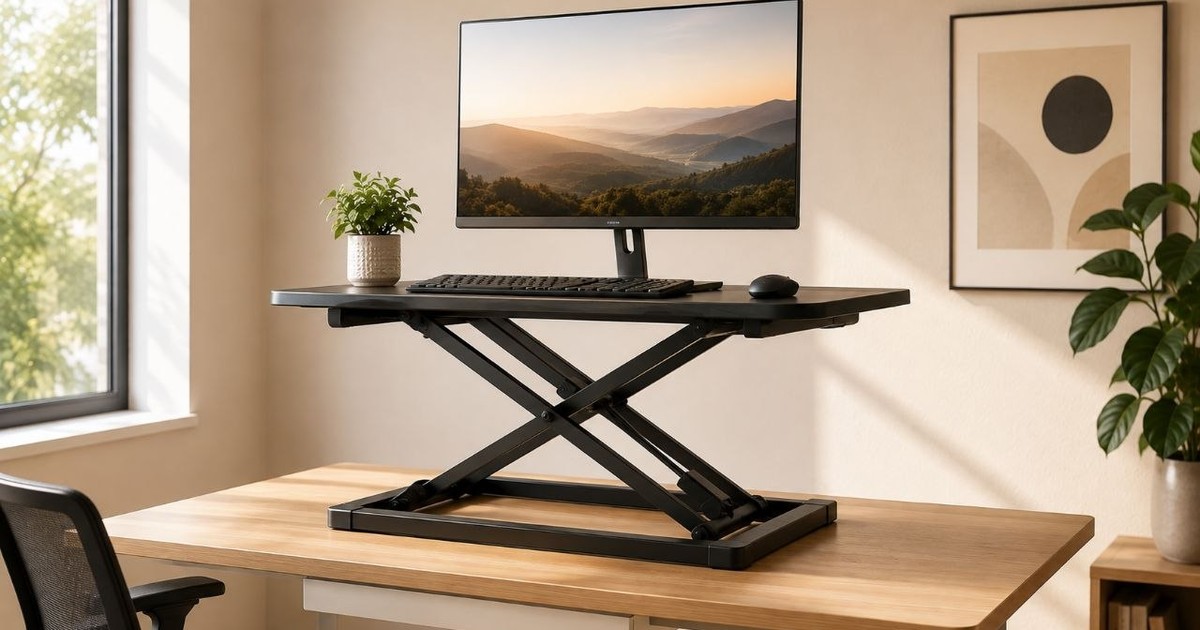
    A standing desk converter (sometimes called a desk riser) sits on top of your current desk and lifts your monitor, keyboard, and mouse to standing height. The desk underneath stays put. Most converters need little or no assembly — you place them on the desk and start using them.

    Who This Branch Fits

    • Your existing desk is solid, flat, and has enough surface area.
    • You want to add sit/stand without replacing furniture.
    • Budget is tighter, or you prefer a simpler upgrade path.
    • You may move the converter between desks or rooms.

    What to Check on Your Existing Desk

    Not every desk can host a converter safely. Verify these before buying:

    • Desk depth: Enough room for the converter platform plus your monitor stand.
    • Desk width: The converter’s base must fit within the available surface.
    • Load capacity: Your desk must hold the converter’s weight plus all your equipment.
    • Clearance: No drawers, lips, or edges that block the converter base.
    • Existing desk height: If your desk is already tall, adding a converter on top may push the standing position uncomfortably high. Measure first.
    • Surface flatness: A stable converter needs a flat, even base.

    Stability

    Converter stability comes from the combination of platform width, base footprint, the adjustment mechanism, and — critically — the desk underneath. A wider platform and larger base generally distribute weight better. Gas-spring mechanisms tend to move more smoothly than manual lifts. Check the manufacturer’s stated load rating and ensure your desk surface is level.

    We do not claim physical wobble testing unless Hemi has specifically conducted and documented such testing.

    Installation

    • Usually placed on the existing desk with minimal or no assembly.
    • Some converters are heavy — verify you can lift and position it safely.
    • No need to clear the room or dismantle furniture.

    Branch B: New Workstation → Full Standing Desk

    A full standing desk replaces your existing desk entirely. It combines a height-adjustable frame with a desktop surface. The whole assembly moves — frame, desktop, and everything on it — between sitting and standing heights, usually with an electric motor and programmable presets.

    Who This Branch Fits

    • Your current desk is unsuitable — too small, unstable, wrong height, or worn.
    • You are setting up a workstation from scratch.
    • You want the largest possible continuous work surface.
    • You prefer electric adjustment with preset memory positions.
    • You want a purpose-built, integrated solution rather than a retrofit.

    Stability

    Full standing desk stability depends on frame construction — steel gauge, cross-bracing, leg design (T-leg, C-leg, or 4-leg configurations each behave differently) — and on the desktop size, since larger surfaces can amplify any frame movement. Staying within the rated load capacity helps. Some frames are more rigid at lower heights; check manufacturer specifications.

    Installation

    • Requires assembling a frame and desktop — more involved than placing a converter.
    • You must remove or relocate the existing desk first.
    • May need two people for frame assembly, depending on weight.
    • Plan for extra floor space during setup.

    Larger Surface, Cleaner Setup

    A full standing desk typically provides a single continuous desktop, which can accommodate dual monitors, documents, and accessories more comfortably than a converter’s platform. Cable management can be routed through the frame, and the result is a cleaner, more integrated appearance.

    From Either Branch: How to Settle the Right Height

    Whichever route you take, the target working height is the same. A useful guideline: the top of your screen should be at or slightly below eye level, with your elbows at approximately 90° when typing. The exact height depends on your stature, chair height, monitor size, and standing posture — there is no single number that works for everyone.

    To find your range:

    • Sitting height: Adjust your chair so feet are flat on the floor and elbows are at roughly 90°. Measure from the floor to the top of your forearm where it meets the desk surface.
    • Standing height: Stand naturally (avoid locking knees). Measure from the floor to the same forearm point.
    • For converters: Add the converter’s height range to your existing desk height and check whether the total lands inside your measured standing range.
    • For full desks: Confirm the frame’s published height range covers both your sitting and standing measurements.

    Always use the manufacturer’s published specifications — never assume a product covers your range without checking.

    Quick Decision Reference

    Your SituationLikely Route
    Solid, flat desk you want to keepStanding desk converter
    Desk is too small, wobbly, or wrong heightFull standing desk
    Setting up a new room or office from scratchFull standing desk
    Need the largest possible work surfaceFull standing desk
    Tight budget, desk is adequateConverter (compare cost vs. replacing the desk)
    Move or reconfigure frequentlyConverter may relocate more easily
    Want electric adjustment with presetsFull standing desk (most converters are manual or gas-spring)
    Need a specific height rangeCompare actual specs — do not assume one category fits

    Which is better depends on your desk, your budget, and your height. There is no single right answer for everyone.

    Real Examples Across the Spectrum
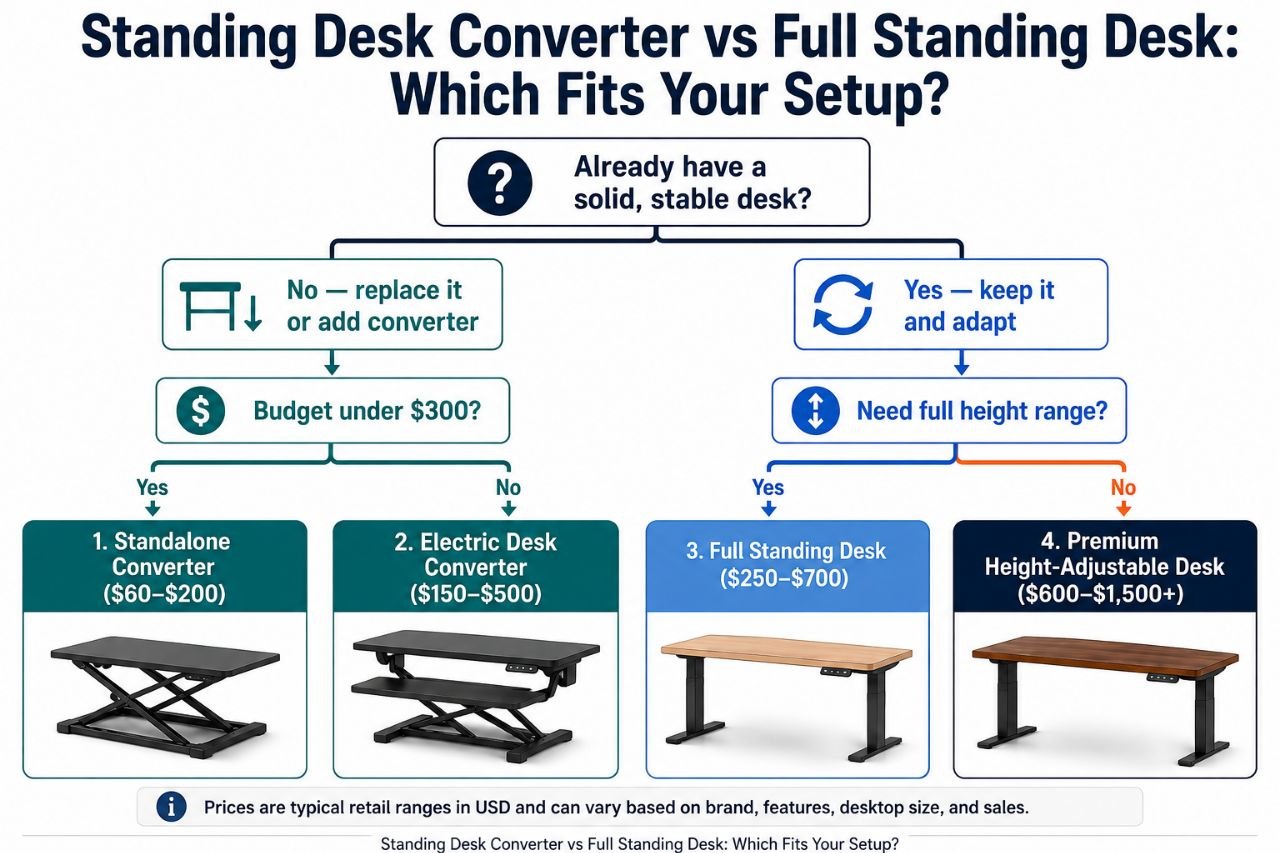
    Decision flowchart comparing a standing desk converter versus a full standing desk for home office setups.

    Below are Hemi Life products that represent different points on the desk-height spectrum. Specifications are from published product information. A product is only described as a standing desk converter if its design raises the entire work surface — monitor, keyboard, and mouse — to a usable standing height.

    Monitor Stand Riser 3-Height Adjustable — Fixed Riser (Not a Converter)

    Type: Fixed-height monitor riser / desk organizer. This is not a standing desk converter.

    • Material: Iron with rubber feet
    • Height Settings: 3 fixed heights (10 cm, 12 cm, 14 cm)
    • Max Load: 20 kg (44 lbs)
    • Ventilation: Mesh holes for heat dissipation
    • Dimensions: 36.5 × 23 × 14 cm
    • Weight: ~1.06 kg
    • Intended Use: Raise a monitor or laptop to a more comfortable viewing height on a fixed desk
    • Price: $89

    Available at: Monitor Stand Riser 3-Height Adjustable ($89)

    32″ Desk Converter (Natural / Walnut) — True Standing Desk Converter

    Type: Standing desk converter with gas-spring assistance. This raises the full work surface for sit/stand use.

    • Adjustment: Smooth gas-spring lift
    • Height Range: Adjustable from sitting to standing height
    • Work Surface: 32″ wide, accommodates dual monitors
    • Colors: Natural, Walnut
    • Max Load: Refer to product specifications
    • Intended Use: Convert an existing desk to a sit/stand workstation
    • Price: $199 (Natural) / $299 (Walnut)

    Available at: 32 Inch Desk Converter Natural ($199) / 32 Inch Desk Converter Walnut ($299)

    Vinsetto Dual Monitor Stand Riser — Desk Riser with Storage (Not a Full Converter)

    Type: Adjustable-width monitor stand riser with drawers. This is a desk riser with storage — not a full standing desk converter.

    • Adjustment: Adjustable length and angle
    • Width Range: Extends up to 116 cm
    • Storage: Two drawers included
    • Max Load: Refer to product specifications
    • Intended Use: Monitor elevation and desk organization with storage
    • Price: $89

    Available at: Vinsetto Dual Monitor Stand Riser ($89)

    The Rest of an Ergonomic Workstation

    A standing desk — whether converter or full desk — is one component. Other elements matter just as much for a sustainable setup:

    • Monitor positioning: Top of screen at or slightly below eye level, roughly 50–70 cm away.
    • Keyboard and mouse: Positioned so elbows rest near 90°, wrists neutral.
    • Chair: Adjustable height, lumbar support, feet flat on the floor.
    • Foot position: Feet flat on the floor; consider a footrest when standing.
    • Lighting: Reduce glare; task lighting can help.
    • Cable management: Route cables to prevent pulling or snagging during height changes.
    • Standing posture: Alternate between sitting and standing; avoid locking knees.
    • Anti-fatigue mat: Can reduce fatigue during prolonged standing.

    The overall setup — not any single product — determines comfort and long-term sustainability.

    How We Headed Off the Template Trap

    Every desk-solution article promises a clean comparison, but most stop at spec sheets and price. We went further: we started from your actual desk and your actual workflow, not from a product catalogue. The branch logic above – keep your desk or replace it, then settle the height from there – is how a real buyer should think, not how a reviewer should rank. If anything here reads like a template, that is a sign the comparison is incomplete, not thorough.

    Two Paths, One Goal

    A standing desk converter lets you keep the desk you have and add height adjustment on top. A full standing desk gives you a clean-sheet workstation built for the purpose. One is not inherently better — they solve different problems for different situations.

    Check your desk first. Measure your height range. Compare actual specifications — not just category labels — and pick the route that fits your desk, your space, and your budget.

    Related Guides

  • Ergonomic Mouse vs Regular Mouse: What the Myths Get Wrong

    Ergonomic Mouse vs Regular Mouse: What the Myths Get Wrong

    Last updated: August 2026 · Written by Hemi

    The Comparison Your Title Promises — and What Actually Varies

    An ergonomic mouse is a pointing device shaped to keep your hand and forearm in a more neutral, relaxed position — closer to a handshake than the flat, palm-down grip of a conventional mouse. Instead of twisting your forearm to face the desk, your hand rests at an angle that reduces pronation and keeps the wrist in a straighter line with the forearm.

    A regular mouse is compact, familiar, and well-suited for precision work. It asks your forearm to stay in a continuously pronated position. An ergonomic mouse changes that starting posture — and that is where the design conversation begins.

    Plenty of marketing around ergonomic mice reads like a cure claim. The reality is more measured: an ergonomic mouse can change your starting hand position, but it cannot fix everything that contributes to wrist or forearm discomfort on its own. The honest question is not “which is better” — it is “which fits how you actually use a mouse, and what trade-off are you willing to make?”

    This article separates the real trade-offs from the myths, so the “vs” in the title means something.

    Why Hand Position Matters

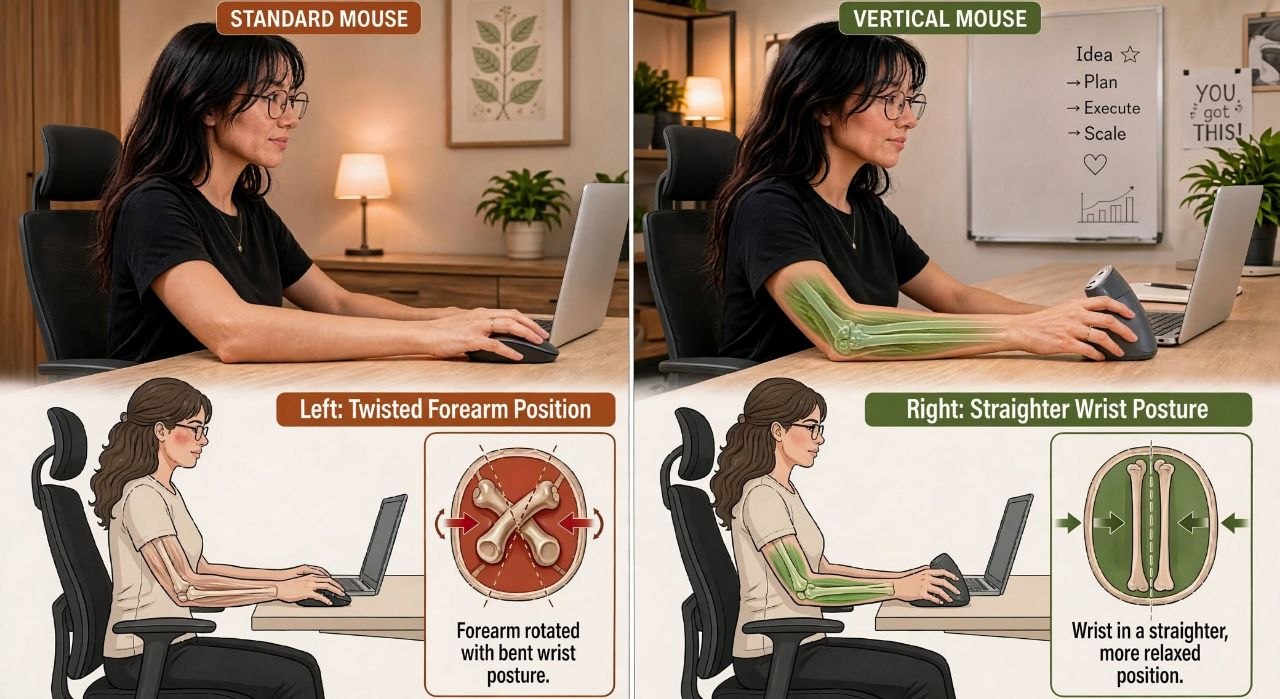
    When you use a conventional flat mouse, your palm faces downward. In this position — called pronation — the two bones in your forearm (the radius and ulna) twist across each other. The muscles that control this twist, particularly the pronator teres, stay engaged the entire time your hand is on the mouse.

    A vertical ergonomic mouse lifts your hand into a “handshake” position, where the palm faces inward at roughly a 60–90° angle. In this posture, the radius and ulna run more parallel, the wrist sits closer to neutral, and the forearm muscles are under less continuous tension. Some studies suggest that this neutral position can reduce muscle activity in the forearm and wrist, though individual results vary and a mouse alone does not treat or prevent any medical condition.

    Hand posture comparison: flat regular mouse forces forearm pronation versus vertical ergonomic mouse in neutral handshake position.
    Flat mouse versus vertical mouse: right hand posture side view. A flat mouse twists the forearm into pronation; a vertical mouse keeps the hand closer to a neutral handshake position.
    AspectRegular MouseVertical Ergonomic Mouse
    Hand PositionFlat (pronated)Handshake (neutral)
    Forearm Rotation~90° pronated~10-20° pronated
    Wrist ExtensionOften extendedNeutral
    Muscle ActivityHigh (pronator teres, flexors)Low (neutral posture)

    If you have persistent wrist, hand, or forearm symptoms, a change of mouse should not be treated as a substitute for professional medical advice.

    How the Main Designs Differ

    Ergonomic mice are not all the same shape. The main categories differ in how far they rotate the hand and what trade-offs come with that angle:

    DesignHand PositionBest ForTrade-offs
    VerticalHandshake (90°)Long sessions, wrist comfortLearning curve, larger size
    Angled / Semi-vertical45–60°Balance of comfort and familiarityModerate learning curve
    Contoured / SculptedSlightly angledPrecision work, familiar feelLess forearm rotation benefit
    Regular / FlatFlat (pronated)Gaming, precision, portabilityHigher forearm pronation

    What This Means for You in Practice

    Understanding the hand-position difference is one thing; living with a new mouse shape is another. Here is what most people notice when they make the switch.

    The Learning Curve

    Switching from a flat mouse to a vertical one can feel unfamiliar at first. Cursor control may feel different, and the handshake grip requires a brief adjustment period. Most users find the new position comfortable within a few days to a couple of weeks, but adaptation time varies by person.

    • Lower the DPI initially (800–1200) for smoother control
    • Practice basic tasks — clicking, dragging, scrolling — for 15–30 minutes daily
    • Keep the mouse close to the keyboard to avoid reaching
    • Adjust DPI and pointer speed in your OS settings to match your preference
    • If discomfort persists beyond a few weeks, reassess the mouse size or shape

    Precision and Task Fit

    A vertical mouse is well-suited to general office work, browsing, and document editing. For tasks that demand pixel-level precision — such as detailed design work, CAD, or competitive gaming — a conventional or contoured mouse may offer finer control. There is no single shape that is best for every task.

    Hand Size and Left-Handed Users

    Hand size matters. A vertical mouse that is too large or too small for your hand can feel awkward and reduce the benefit of the neutral posture. Compact vertical mice (under 100 g, under 11 cm length) tend to suit smaller hands, while larger shells suit bigger hands. Check the product dimensions before buying.

    Left-handed users face an additional consideration: true left-handed vertical mice are less common than right-handed designs. If you are left-handed, verify the product shape carefully — some designs labelled “ergonomic” are still contoured for right-hand use — and consider ambidextrous alternatives where appropriate.

    One Representative Example — and What It Illustrates

    To show what a full vertical mouse looks like on paper, here is one representative HemiLife option with its published specifications. Specifications are drawn from published product information; they are an illustration of the category, not a ranking.

    Working Example: Vertical Rechargeable Wireless Mouse

    Vertical Rechargeable Wireless Mouse — $99.00

    • Shape: Full vertical, handshake grip
    • Connection: Wireless (2.4 GHz / Bluetooth)
    • Sensor: Optical, adjustable DPI
    • Buttons: 5 programmable buttons
    • Battery: Rechargeable via USB-C
    • Weight: ~135 g
    • Best for: Full-day office use, users wanting full vertical support

    Within the same vertical-mouse category, other designs differ mainly by grip angle (full vertical vs angled), size, and battery approach. The right choice among them depends on your hand size and how much vertical angle you actually want — not on any single “best” model.

    What This Means for Your Decision

    The honest “vs” splits two legitimate needs:

    • If your priority is precision, familiarity, and low cost: a regular flat mouse is a legitimate choice. It is compact, widely understood, and the lowest-friction option for people who switch between tasks or share a desk. The trade-off is the continuously pronated forearm position — a cost most people notice only after long sessions.
    • If your priority is a more neutral hand position: a vertical or angled ergonomic mouse changes your starting posture. For some people that means less forearm tension during long sessions. The trade-offs are a learning curve (precision and speed often dip briefly at first), a different feel that is not for everyone, and — at the higher end — a higher price for designs that may not be worth it for your use.
    • If you are buying to solve a medical problem: an ergonomic mouse is a tool that can support a better position. It is not a cure, and it cannot fix problems caused by chair height, screen position, typing habits, or how long you sit. Treat it as one piece of a setup, not a fix.

    That is the real comparison the title points to. Different hands, different tasks, and different budgets land on different sides — and that is a feature of the category, not a failure of it.

    If your setup issue is not just the mouse, see our ergonomic keyboard vs regular keyboard guide for the adjacent input-device decision.

    Related Guides

  • How to Choose the Right Laptop Stand for Your Home Office

    How to Choose the Right Laptop Stand for Your Home Office

    Last updated: August 2026 · Written by Hemi

    Laptop stands are not all the same product. The term covers a multi-height riser that sits on a desk, a folding adjustable stand that travels with you, a vertical dock that stores a closed laptop, and a monitor arm that positions an external display. Each serves a different purpose, so there is no single stand that is right for every home-office setup. This guide walks through which category fits your work style, then what to look for within that category.

    First, What Kind of Laptop Stand Do You Need?

    Before comparing brands or prices, identify which sub-type matches how you actually work. The four main options serve different needs.

    Multi-height riser

    A multi-height riser is a sturdy shelf that sits on your desk and elevates the laptop or monitor in fixed height steps — for example, 10 cm, 12 cm, or 14 cm. It stays put on the desk and typically includes ventilation holes. This type works well when you have a fixed home-office setup with an external keyboard and mouse, because raising the laptop keyboard makes typing on it impractical. A riser can also hold a monitor, small printer, or desk accessories alongside a laptop.

    Folding adjustable stand

    A folding adjustable stand uses hinged arms to angle the laptop screen upward while keeping the base on the desk. Most use a friction hinge for continuous angle adjustment rather than preset steps. The stand folds flat for portability, making it a practical choice for people who move between desks, work from co-working spaces, or travel. This type is designed for laptop-only work — if you use an external keyboard with it, you will need to position the keyboard in front of the stand.

    Vertical laptop stand

    A vertical stand is a dock that holds a laptop upright and closed. It does not raise the screen for use. Its purpose is storage: it keeps a closed laptop tidy on the desk, frees up surface area, and allows airflow around the chassis. This type suits setups where an external monitor is the main display and the laptop stays closed most of the time. It is not a substitute for a stand that elevates the screen while you work on the laptop itself.

    Monitor arm

    A monitor arm is a bracket that clamps to the desk or mounts through a grommet and positions an external monitor in space, clearing the desk surface beneath it. While some arms can be fitted with a laptop tray, a standard arm is designed for VESA-compatible monitors. For most laptop-only setups, a riser or folding stand is simpler; a monitor arm makes more sense when an external display is the primary screen.

    Which Stand Matches Your Work Style?

    The table below maps common work patterns to the stand sub-type that typically fits. If more than one applies, lean toward the pattern that describes most of your working hours.

    Your work styleBest-fit stand typeWhy
    Fixed desk, external keyboard and mouseMulti-height riserStable, fixed height steps, can also hold a monitor or accessories
    Laptop-only work at one deskFolding adjustable standContinuous angle adjustment, keeps the laptop keyboard usable at an angle
    Travel or work from multiple locationsFolding adjustable stand (portable)Folds flat, light enough to carry daily
    External monitor as main display, laptop closedVertical standStores laptop upright, frees desk space, allows airflow
    External monitor as main display, want maximum desk clearanceMonitor armPositions the monitor in space, clears the desk surface beneath it
    Hybrid: desk work and occasional travelFolding adjustable standWorks at a desk, folds when you need to move

    What to Look For Within Your Chosen Category

    Once you know which sub-type fits your work, a few practical criteria help you pick the right model.

    Screen height

    A common aim is to bring the top of the screen close to eye level so you look slightly down rather than sharply down. For a riser, check the height steps against your seated eye level and desk height. For a folding stand, check how much the angle raises the screen top — steeper angles lift the screen higher but may also tilt the keyboard more. Raising the screen can help you position the display closer to eye level and may make a more comfortable workstation easier to achieve.

    Adjustability

    Multi-height risers offer a few fixed steps; you pick one and leave it. Folding adjustable stands offer continuous angle adjustment through a friction hinge, which can be useful if you change working position through the day. A vertical stand needs no adjustability. A monitor arm typically offers height, tilt, swivel, and rotation adjustments. Choose based on whether you change working position or height often.

    Stability and build

    Heavier metal risers and stands tend to stay put better than very light models. Check the stated maximum load against your laptop and anything else you plan to place on the stand. Rubber feet or silicone grips help prevent sliding on the desk surface. Iron risers tend to be heavier and more stable than aluminium folding stands.

    Portability

    If you carry the stand between locations, folded size and weight matter. A flat-folding aluminium stand is realistic to pack daily; a large metal riser is not. For a fixed desk, portability is irrelevant and a heavier, more stable riser is often the better choice.

    Material and ventilation

    Aluminium and iron are common materials. Aluminium is lighter; iron risers tend to be heavier and more stable. Ventilation holes or an open-hollow design can improve airflow beneath the laptop, which is a practical benefit for cooling.

    Example Products: Published Specifications

    Below are example products representing the main stand categories. The specifications shown are based on published product information, and prices are listed in $. These examples are included to illustrate how different stand designs compare. This is a specification and category comparison; we do not claim physical or long-term testing.

    Multi-height riser example: Monitor Stand Riser 3-Height

    • Material: iron with rubber feet
    • Height settings: 10 cm, 12 cm, and 14 cm
    • Max load: 20 kg (44 lbs)
    • Ventilation: mesh holes in the top surface
    • Dimensions: 36.5 × 23 × 14 cm; weight about 1.06 kg
    • Colors: black
    • Use case: fixed home-office setup with external keyboard, mouse, or monitor

    Hemi Life offers this riser in its storefront at $89: Monitor Stand Riser 3-Height.

    Folding adjustable stand example: Foldable Adjustable Rotating Laptop Stand

    • Material: aluminum alloy with silicone grips
    • Adjustable angle (friction hinge)
    • Folds flat for portability
    • Colors: silver, dark grey
    • Use case: travel, co-working, or hybrid work with a laptop-only setup

    Hemi Life offers a folding adjustable stand at $69: Foldable Adjustable Rotating Laptop Stand.

    Vertical stand example: Simple Vertical Aluminum Laptop Stand

    A vertical stand stores a laptop upright and closed for airflow and desk tidying. Its published specifications:

    • Material: anodized aluminum alloy with silicone
    • Design: vertical dock for a closed laptop or tablet
    • Colors: dark sky gray, silver
    • Use case: storage and airflow when the laptop is not in use; does not raise the screen for use

    Hemi Life offers a vertical laptop stand at $49: see the Simple Vertical Aluminum Laptop Stand for details.

    Portable folding stand example: Adjustable Laptop Stand Portable

    • Material: aluminum alloy
    • Folding and portable
    • Hollow design
    • Dimensions: 251 × 240 × 40 mm
    • Use case: portable, laptop-only work

    Hemi Life offers an adjustable portable stand at $39: see the Adjustable Laptop Stand Portable.

    Completing the Workstation

    A stand is one part of a comfortable setup. A simple starting arrangement includes:

    • A support that brings the screen toward eye level (a riser or stand)
    • An external keyboard and mouse so your arms can rest neutral
    • Desk and chair heights that allow your elbows to rest comfortably around 90 degrees
    • Cables managed so they do not pull on the gear

    How We Avoided a Laptop-Stand Ranking

    Laptop stands are a category where “best” depends entirely on the use case: a multi-height riser suits someone who switches between sitting and standing, a folding stand suits travel, a vertical stand suits storage and portability, and a monitor arm suits a desk that already has an external display. We built the decision grid around those real divisions instead of ranking models against each other. The comparison below is about the category, not a top-ten list.

    Matching It to Your Work

    Choosing a laptop stand is about matching the type to the way you work. For a fixed home-office setup, a multi-height riser offers stability and can hold more than just the laptop. For users who travel or work on the laptop alone, a folding adjustable stand is more practical. And if the laptop sits closed most of the time, a vertical stand provides storage and airflow without occupying much desk area.

    Hemi Life offers products across several of these categories, with specifications provided on the relevant product pages. Whichever you choose, the goal is a screen closer to your eye level and a workspace that feels comfortable to you.

    Related Guides