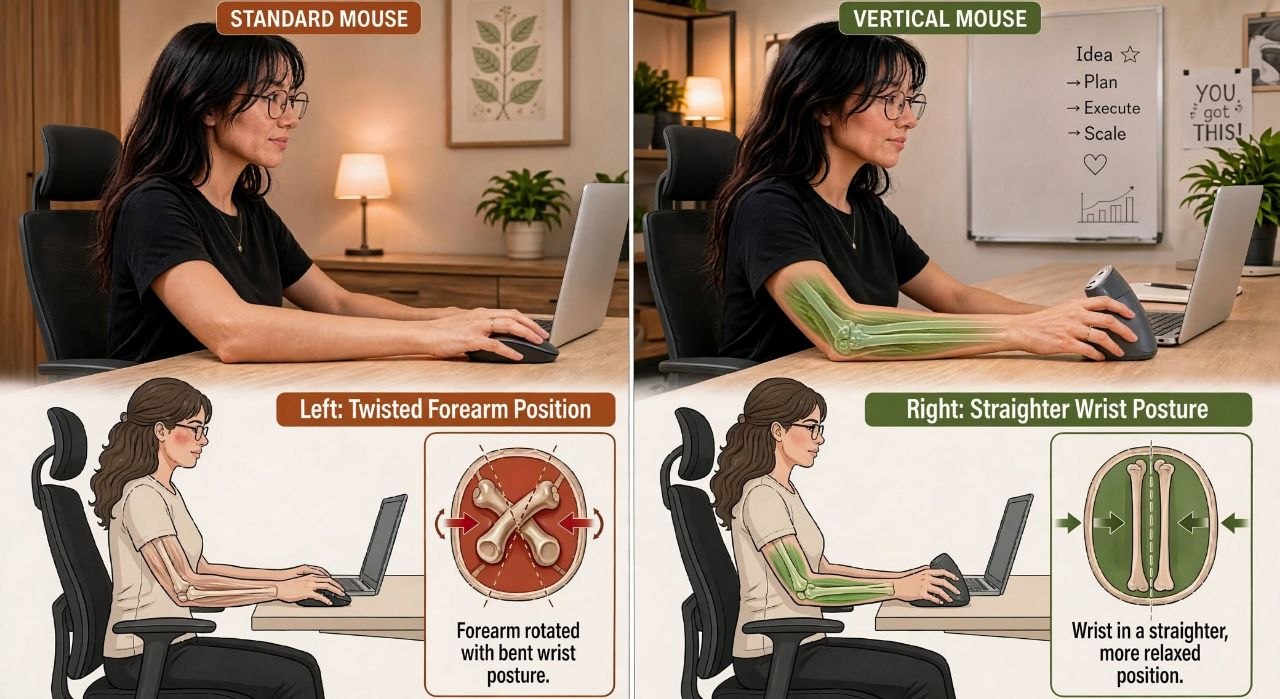
The keyboard is often the last piece of a desk setup people upgrade — and one of the most misunderstood. If you are wondering whether an ergonomic keyboard will fix wrist discomfort, this article separates common claims from what is actually known, and explains the practical features worth looking for.
Do Ergonomic Keyboards “Fix” Wrist Problems?
No single piece of hardware can fix a problem that involves posture, typing habits, chair height, screen position, and how long you sit without a break. An ergonomic keyboard is shaped or angled to help you keep your wrists straighter — and for some people that may reduce strain — but it is a tool that supports a better position, not a cure.
What the Research Actually Says — and What It Doesn’t
The question behind most ergonomic keyboard claims is simple: does changing keyboard shape or angle reduce wrist or forearm strain? The honest answer is that the evidence is real but limited, and it points in a specific direction — not to a cure, and not to a guarantee.
Workplace guidance on display screen equipment — the kind of guidance used in many offices to set up workstations — consistently points to overall posture and setup as the bigger influence on comfort, not any single piece of hardware. A keyboard is one part of a setup that includes chair height, screen position, typing habits, and how long you sit without a break. On that basis, no single keyboard can be expected to fix a problem on its own.
What is well-supported is more modest: designs that split the two halves, angle them upward, or add a tilt can help some people hold their wrists closer to a relaxed, neutral line. That is a design effect, not a health outcome. It means the keyboard can make a better position easier to hold — not that it will prevent or treat a condition.
What is weakly supported or not yet settled: how much any given keyboard design reduces strain for a specific person, which design works best for which hand or typing style, and whether the benefit persists or fades after the adjustment period. These are real uncertainties. If you need a keyboard to “work” in a guaranteed sense, the evidence does not support that level of certainty for any design.
How to apply this to your setup: start from what you are actually trying to improve. If the issue is wrist angle while typing, a split or tented design is worth trying — but expect an adjustment period, and do not assume it will solve discomfort that comes from elsewhere in your setup. If the issue is general fatigue or pain that shows up in multiple positions, the keyboard is one place to look, not the only one.
Where the evidence is thin, the practical move is to try a design for a reasonable period and judge the result for yourself — while keeping the rest of your setup in view. That is the honest use of the evidence, and it is the frame the rest of this article works inside.
The Myths — and What the Reality Looks Like
Myth: An ergonomic keyboard prevents wrist problems
This claim appears often in product marketing, but workplace guidance (such as display-screen-equipment guidance used in many offices) points to overall posture and setup — not the hardware alone — as the bigger influence. A keyboard can help you hold a better position, but it cannot guarantee that position or prevent a condition on its own.
Reality: A well-designed keyboard may help some people hold a more neutral position
Designs that split the two halves, angle them upward, or add a tilt can bring your wrists closer to a relaxed handshake line. Many users who try them report that the position feels more natural. Results are personal, so the reliable approach is to try a design and judge it by your own comfort — not by what a headline promises.
Myth: You must spend a lot to get any benefit
Benefit comes from supporting a neutral hand position, not from a high price. A modest keyboard that you set up so your wrists stay straight can be more useful than an expensive one that encourages a poor position. Price and benefit do not track each other neatly in this category.
Myth: Split or tented is automatically better for everyone
Split and tented designs change where your hands sit, and that change is not uniformly beneficial. Hand size, typing style, desk depth, and existing habits all affect whether a split layout feels easier or harder. A gentler design — a standard-layout keyboard with a hand rest and a softer key feel — suits some people better than an aggressive ergonomic shape.
Why the Myths Persist
Two forces keep these ideas alive. The first is marketing: “ergonomic” is a powerful label, and products that carry it are often positioned as a solution rather than a support. The second is genuine anecdote — people who buy an ergonomic keyboard, feel more comfortable, and attribute the improvement entirely to the keyboard, even when they also changed their desk height, chair position, or typing habits at the same time. Both are real, and both blur the line between what the keyboard does and what the whole setup does.
What the Advice Is Really Based On
Two ideas sit at the centre of ergonomic keyboard guidance, and they are worth separating.
- Well-supported: keeping the wrist closer to a straight, relaxed line for long periods is generally easier on the forearm than holding it bent continuously.
- Individual: the effect of any specific layout depends on your hand size, typing style, and how much you already experience strain.
- Not guaranteed: no keyboard is known to prevent a medical condition for every person who uses it.
The practical takeaway is to choose a design that lets you keep your wrists straight and to adjust your setup around it, rather than assume one product works for everyone.
Ergonomic Keyboard Designs Compared
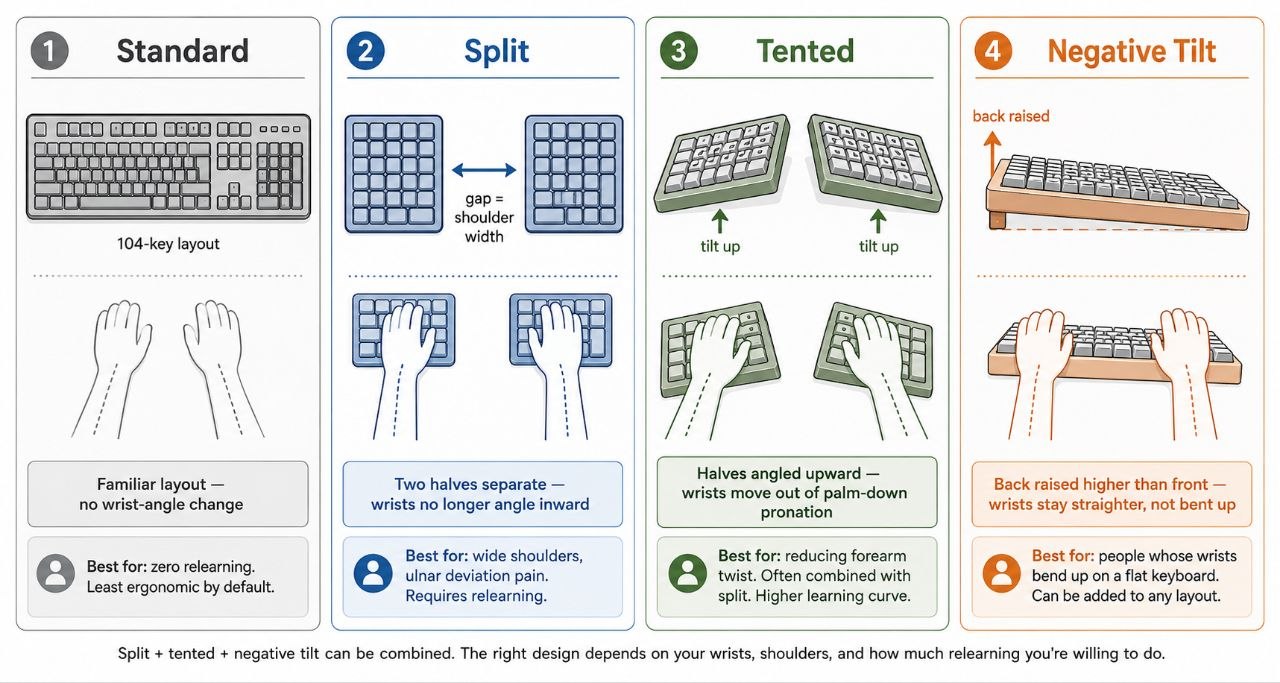
| Design | What It Does | Best For |
|---|---|---|
| Split keyboard | Divides the keys into two halves | Keeping shoulders and wrists aligned |
| Tented keyboard | Angles the two halves upward | Reducing palm-down wrist rotation |
| Negative tilt | Raises the back so wrists stay flat | Light, frequent typing |
| Curved / contoured | Shapes the key layout to hand arcs | Less finger reach on a fixed layout |
| Ergonomic plus hand rest | Adds a wrist pad by the keys | A resting place between bursts of typing |
Features That Matter in Practice
- Neutral wrist position first: the design should let you keep your wrists straight, not bent up or to the side.
- Adjustability: a keyboard you can tilt or angle to suit your own hands is more flexible than a fixed design.
- Switch type: membrane keys are quiet and common; mechanical keyboards with silent switches are another option if you prefer a more defined feel and are prepared for a learning curve.
- Palm rest: useful as a resting place, not something to lean on while typing.
- Connectivity: choose wired or wireless based on how you like to keep your desk tidy.
Example of an Ergonomic Keyboard
An example of the simpler end of the category is an ergonomic wireless keyboard with a built-in hand rest. It uses a familiar 104-key layout with silent membrane keys, connects by USB wireless, and adds multimedia shortcut keys. A keyboard like this is typically priced around USD 29.
This sits between a standard keyboard and a specialist ergonomic board. It keeps a familiar full layout while adding a hand rest and quiet keys, which suits people who want a low-friction upgrade without relearning a split layout. Someone who wants the more dramatic wrist angle of a split or tented board would look further up the range.
Expect an Adjustment Period
Split and tented keyboards can take days to weeks to get used to, especially if you touch-type. Your typing speed may drop at first while your hands learn a new layout. That is normal and temporary. If you are not prepared to relearn your typing position, a gentler design with a hand rest or tilt may be the better fit — it changes less, so it is easier to adapt to.
How to Set Up Whatever Keyboard You Use
Good setup matters more than the keyboard itself. Work through these steps as a practical starting point:
- Place the keyboard so your forearms are roughly horizontal and your elbows sit near your desk height. A properly adjusted chair helps here.
- Keep your wrists straight, not bent up or resting heavily.
- Position the keyboard so you do not reach forward or twist to one side.
- If you use a palm rest, rest your palms between bursts of typing — not while typing.
- Take regular breaks and change position frequently, as outlined in the ergonomic home office guide.
Comparison Disclosure
This comparison draws on publicly available keyboard specifications, common design categories, and generally accepted principles of neutral wrist positioning — not on long-term physical testing of individual products by HemiLife. Prices are as published at the time of writing and may change. Product examples are provided to illustrate category differences and do not imply superiority within that category.
An ergonomic keyboard is one part of the picture. Keeping your wrists straight, positioning the keyboard well, and taking regular breaks all matter — and they matter regardless of which keyboard you choose. If you have persistent pain, numbness, or discomfort, speak to a qualified health professional rather than relying on a keyboard to resolve it. Choose the tool that supports the position you already want to keep.
Related Guides
See how a vertical ergonomic mouse pairs with your keyboard, and raise your screen to the right height with a monitor arm or riser.